How To: Hide Private Photos on Your iPhone

How To: Hide Private Photos on Your iPhone
When a photo or video is just too sensitive to leave laying around in your Photos app, you'll want to either delete it for good or hide it away in safe, secure location on your iPhone. As for the latter, Apple actually has a few tools available to make photos and videos hidden — even password-protected — on your iPhone.Even if you don't like Apple's options (the first three listed below), there are other developers you can rely on to keep your sensitive media safe from prying eyes. If someone has access to your iPhone or Mac, it's possible they can find images and movies you'd rather them not see, especially if you sync with iCloud. To lock down your secret media, try these tips out.Don't Miss: 7 Privacy Tips for Photos & Videos on Your iPhone

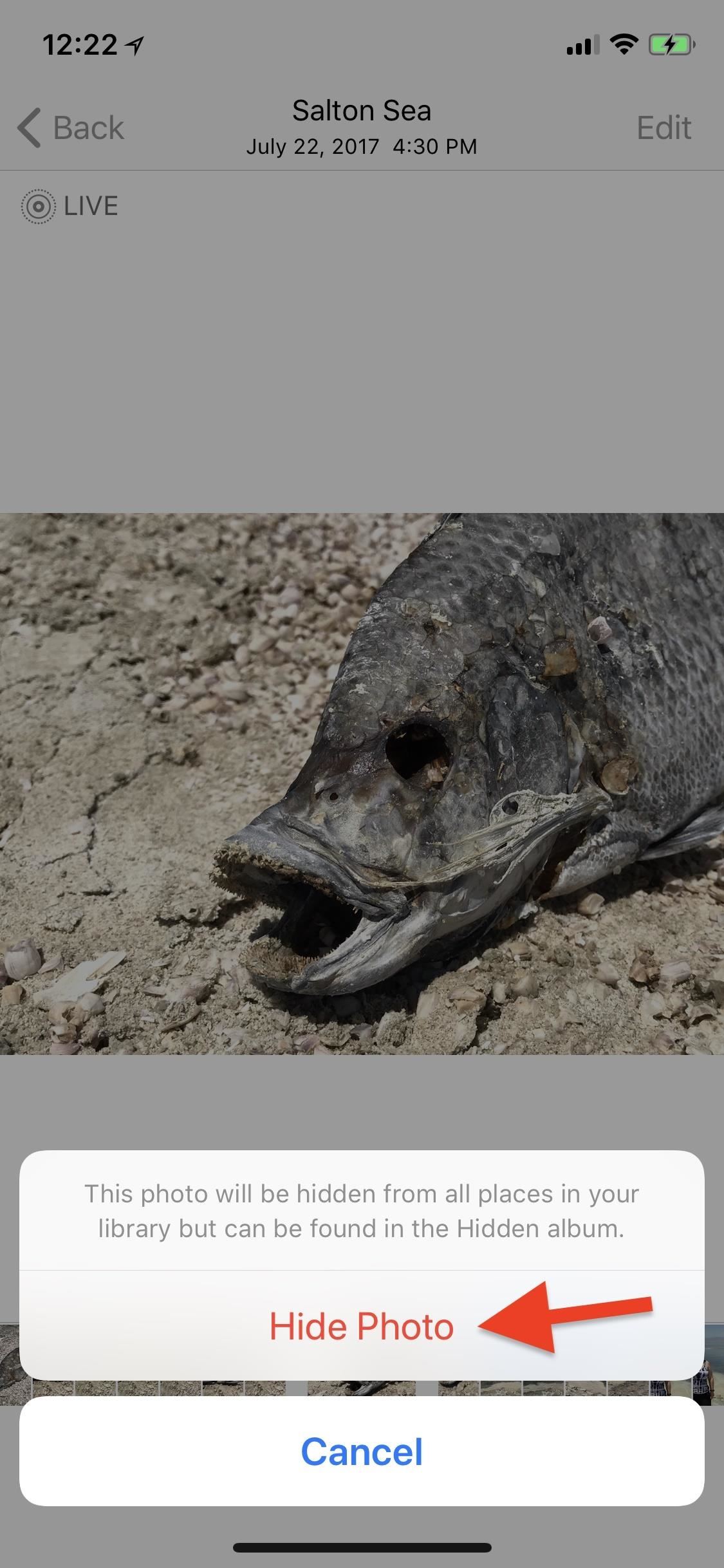
Option 1: Hide Them in the Photos AppA little-known iPhone secret is that you can actually hide photos and videos in the Photos app. However, doing so will only hide them from your Moments, Years, and Collections view, as well any albums they appear in, but will keep the photos and/or videos available in a new "Hidden" album.While it would be nice if Apple could make this a passcode-protected folder one day, it still helps keeps eyes off your spicy media when showing off collections to your family and friends. If you definitely want a password on your content, check out the other options in this guide.To hide a photo or video, select it, then use the share icon to bring up the share sheet. Scroll through the bottom row of activities until you see "Hide." Tap that, then "Hide Photo" or "Hide Video" to get the job done. To view your hidden media, just open the new "Hidden" folder in the "Albums" tab.More Info: How to Hide Photos & Videos from Your iPhone's Camera Roll

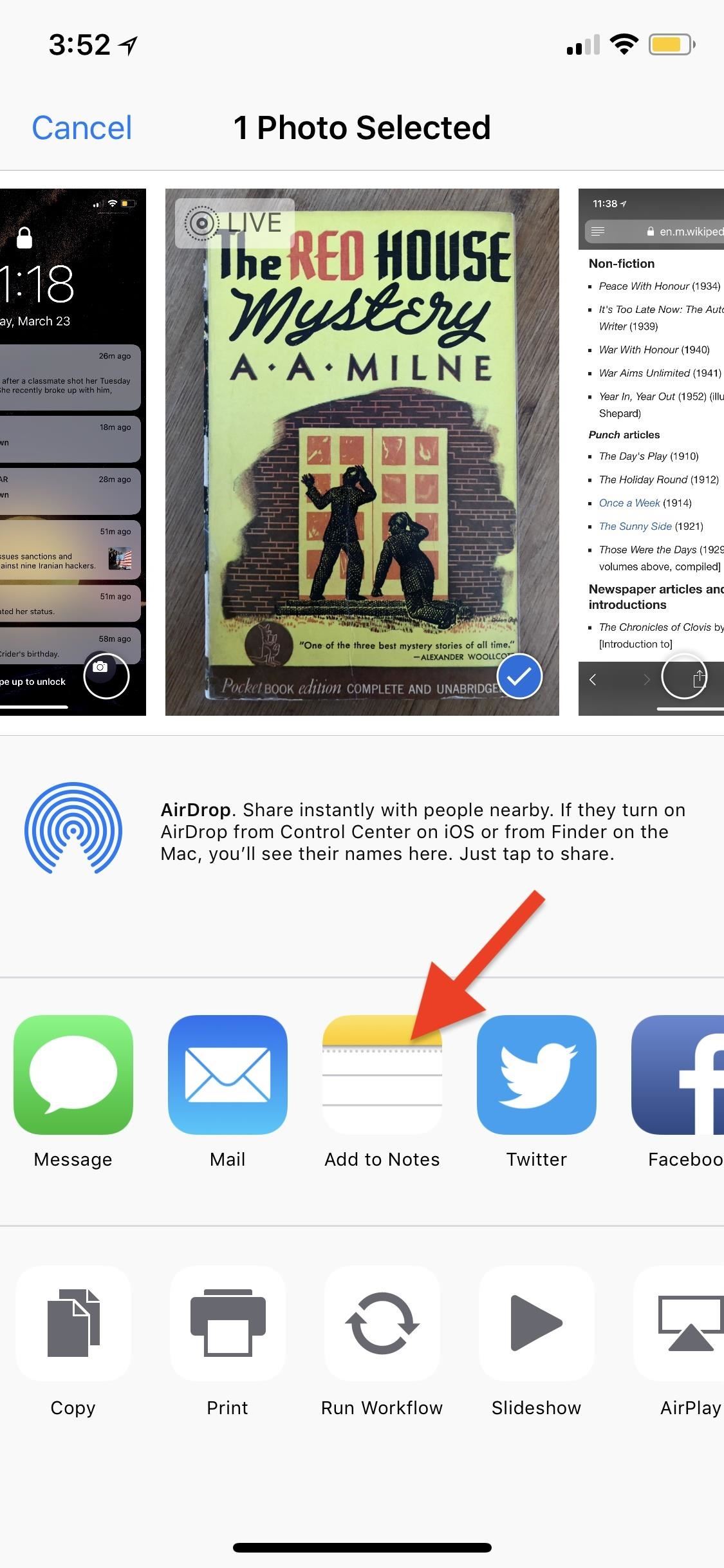
Option 2: Lock Them Down in the Notes AppWhile the above option "hides" your photos and videos from everywhere in the main Photos app except the newly created "Hidden" album, you may want to go a step beyond so there are zero traces of the photos and videos you'd like to keep secret. This can be done in the Notes app.In the Photos app, select the media you'd like to hide, tap on the share icon, then select "Add to Notes" from the first row of activities. You can add the media to an existing note or create a new one. If it's a Live Photo, it will lose its Live Photo abilities when added to a note, so keep that in mind. Hit "Save" to finish.Once that's done, in the Photos app, you can now trash all the media you imported into Notes — and then empty your trash — to get rid of all of the photos. Next, open up the Notes app, swipe left on the note/s to show the options (or use the share sheet when in the note), then hit the lock icon to keep it from prying eyes.If it's your first time using the lock feature, you'll need to create a password. If it's not, you'll need to enter the password you already made for Notes. You can also opt to use Touch ID or Face ID to lock and unlock notes. After that's done, actually lock the note by tapping on "Lock Now" at the bottom of the folder or by hitting the lock icon up top in the note itself.More Info: Everything You Need to Know About Locking Notes on Your iPhone While media dimensions will be the same and so will the quality, one downside to this method is that you can't keep Live Photos, so make sure that you pick the best thumbnail for the image before sharing to Notes. Also, you cannot add photos to a locked note from Photos. Instead, you'll import them in from the note directly, if you'd rather keep all your secret photos in one note versus many different ones.Don't Miss: The Trick to Protecting Each Note with Separate, Unique Passwords

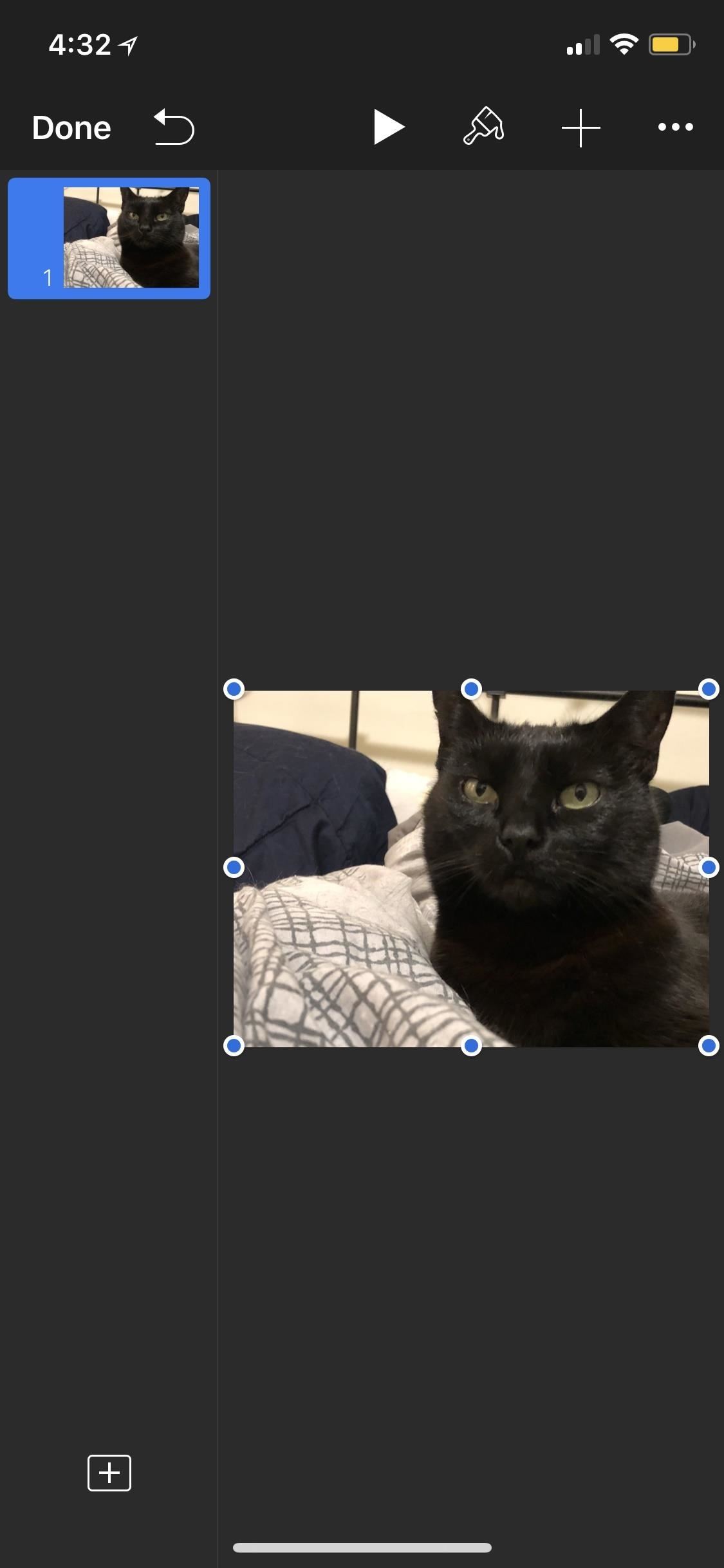
Option 3: Lock Them Down in iWork AppsI don't recommend this method myself, but technically, you can do pretty much the same in Keynote, Numbers, and Pages as you can with the Notes app. However, quality will be an issue, since the media dimensions will be dictated by how large the page size is, and you don't have the same options available as you do as in Notes, such as the ability to save the media back into your Photos app.If you're okay with loss of quality, then you'll have to import the media into your Keynote, Numbers, or Pages document using the "+" icon in the document's menu bar. Navigate to and select a photo or video, then tap the ellipsis (...) icon in the menu bar and select "Set Password" from the list. Create your password and hint, if necessary, then hit "Done" to be redirected back to your document. Once you leave the document, you'll need to enter the password set in order to access it.Then, just go to your Photos app, delete the photos and/or videos you saved in a document, then empty the trash to make sure they are gone for good.

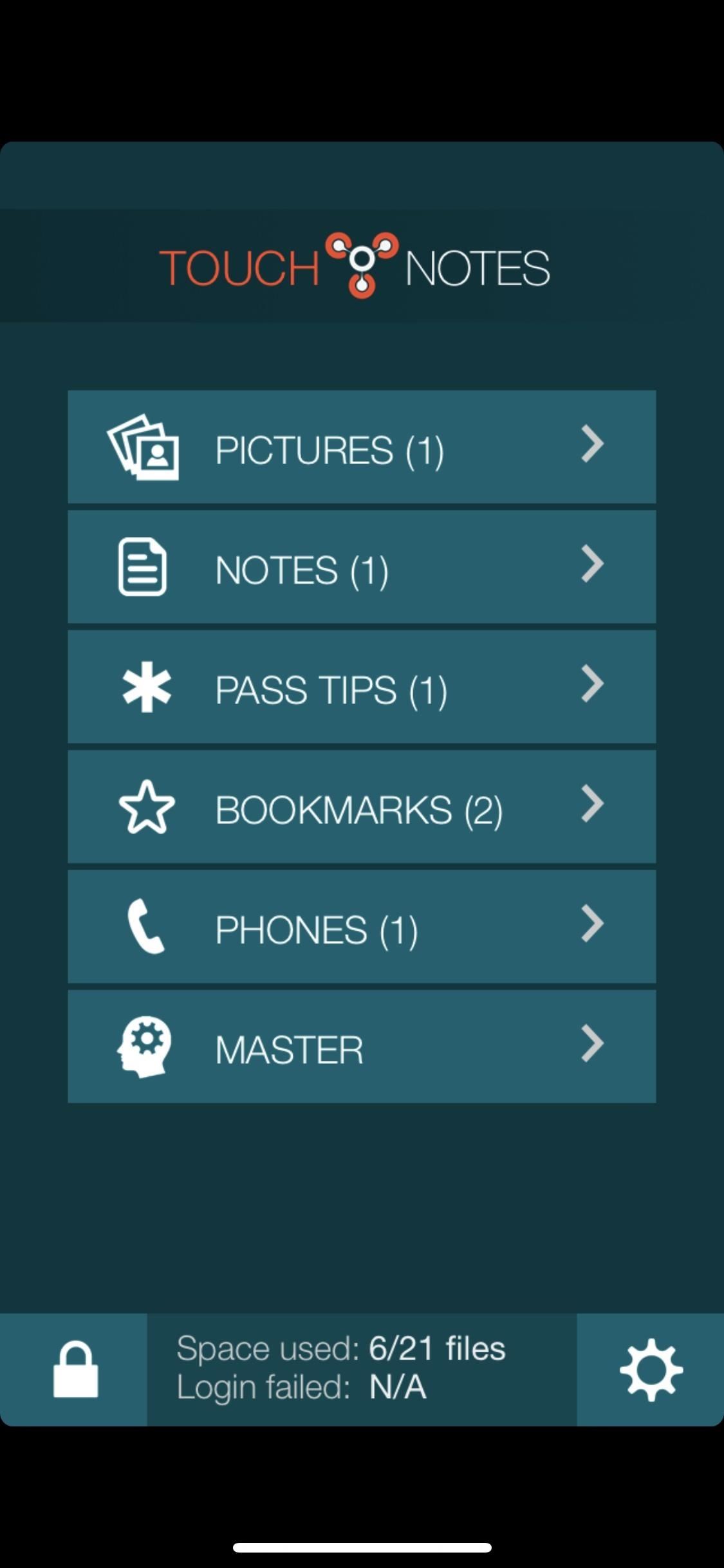
Option 4: Use a Third-Party Locker AppYes, using Apple's own ways to hide photos and videos on your iPhone may be more work than you want, but they get the job done. However, so do a variety of third-party apps in the App Store. TouchyNotes (free), Folder Lock (free), Secure Gallery & Password Vault (free), Keeply (free), and Private Photo Vault (free or $3.99) are all good options you can start testing out today.You'll still likely need to delete the media from the Photos app, as well as empty the trash, but now you have more secure options for keeping your media private. For instance, TouchyNotes (seen below) makes it so you can input your passcode right in front of people without them figuring out the passcode. Don't Miss: Everything You Need to Disable on Your iPhone for Maximum SecurityFollow Gadget Hacks on Pinterest, Twitter, YouTube, and Flipboard Sign up for Gadget Hacks' daily newsletter or weekly Android and iOS updates Follow WonderHowTo on Facebook, Twitter, Pinterest, and Flipboard
Cover photo and screenshots by Justin Meyers/Gadget Hacks


As you improve your site, you can use Google's recommendations and benchmarks to set your goals and measure your performance. After all — as the largest search engine in the world, Google can have a major impact on your success. So using their standards as your standards is never a bad idea. How to speed up your website in 2019
3 Ways to Speed up Your Site with PHP - Code Envato Tuts+


How To: Take Spinning Video Footage from Above with a Ceiling Fan & Phone How To: Build a Tablet Mount for No-Hands Reading and Movie Watching in Bed How To: Use Chief's RLT-1, the universal plasma TV wall mount How To: Get Apple TV's New Aerial Screen Saver on Your Mac
Cut Your Electric Bill in Half | Central Air Conditioner cool


The iCloud Message sync feature from Apple has been a much-anticipated feature for quite some time now. With every new iOS release, we have checked to see if the feature made it to our devices. iOS 11.4 is here to help you fulfill that desire! The ability to save your messages in the iCloud and have
Will facetime work with my iCloud aliases? - Apple Community


Elements 15: How to save edited clips in timeli | Adobe


In order to help you choose the best possible Monero wallet, we have included a comparison box. Check it out to ensure you make the best choice.If you want to learn more about how to buy Monero
How to Trade Cryptocurrency - For Beginners


XAMPP servers are a free open source server that makes it cheap and easy for you to test and review your website building as you go. This tutorial covers how to configure your XAMPP server for windows.
How to Configure Your XAMPP Server - YouTube


Making a Vinegar Battery Vinegar also makes a good electrolyte, because it contains acetic acid. You can use copper for the anode, but zinc makes a better cathode than aluminum; if you don't have a zinc strip, use a galvanized nail, which is coated with zinc.
How to Make a vinegar battery « Hacks, Mods & Circuitry


The battery percentage is not shown by default on Android Oreo or Pie, but you can enable this feature within seconds. This wikiHow will teach you how to show your battery percentage in the status bar so you can quickly see your battery usage at all times.
Android 6.0 Marshmallow: How to enable battery percentage and


In this tutorial, we learn how to text message from the Palm Pre. First, tap the launcher icon. After this, find and tap on the messaging icon. From here, tap on the new message icon and then enter in the name or the number for the person you want to text. After this, tap on the bottom where you
I need to download text messages & pics from my old phone, a


In the new App Store, I hid a free App (Word Connect) after I upgraded to iOS 11 on my iPhone 7. When I checked my purchased Apps, it was no longer included in my "purchased" list. After I could find no way to unhide it, I went to the App Store and downloaded it again. Even though the App shows up on my iPhone, when I look at my purchased Apps
How to hide and unhide apps from your iPhone's purchased list

How To: Get These Badass Circular App Icons to Round Out Your


2) Under the Account Preferences section click Delete your account or services. 3) From here, you have two options: Delete products (such as Gmail, YouTube, etc.) or Delete Google Account & Data. Since this is a guide on how to delete everything from Google, we'll select Delete Google Account & Data. 4) Google will ask you to re-enter your
How to Delete Activity History of Your Google Account on Android

News: Comparing the Best International Data Plans from All Major US Carriers

News: Comparing the Best International Data Plans from All Major US Carriers

Traveling abroad can be a hassle. Between the flight, hotels, food, and the languages barriers, it can be a lot to manage. There's one tool you have that can help with all of this — your smartphone. Fortunately, nowadays, you don't have to change your carrier to continue using your phone.For a seamless experience, you'll need a an international plan to use your phone in another country. This will be different from your usual plan, as it may limit data usage and charge you for each call or text you send or receive. In the past, using your US wireless carrier abroad was a mistake as the fees were too high, but things have changed. While none of the five major carriers offer a plan that's comparable to what you enjoy at home, they are at least affordable and let you keep your phone's many features without breaking the bank.See international plans and pricing for: Verizon | AT&T | T-Mobile | Sprint
Verizon
Unlimited PlansIf you're a Verizon customer making a trip to Mexico or Canada, the most inexpensive option is one of their Unlimited plans. Go Unlimited, Beyond Unlimited, and Above Unlimited all offer unlimited calls, text, and 2G data within Mexico and Canada. 4G data is also available, but limited to 0.5 GB a day.If you have one of these plans for your regular service, Mexico and Canada service is included, and there are no overages for data. Instead, Verizon switches you to 2G data when you exceed the 0.5 GB cap while abroad. Verizon recommends you use a 4G World Device for the best service, although other phones should work. Be aware that no more than 50% of your usage (calls, texts, or data) can be to either country over a two month period.Price: free with any Verizon Unlimited plan Included countries: 2 (Mexico and Canada) Duration: None 4G LTE data: 0.5 GB per line per day (where available, otherwise 3G) 3G data: N/A 2G data: same as your domestic plan Calls to US phone numbers: unlimited Calls from US phone numbers: unlimited Calls to local international numbers: unlimited Calls from local international numbers: unlimited Texts (SMS) sent to US phone numbers: unlimited Texts (SMS) received from US phone numbers: unlimited Texts (SMS) sent to local international numbers: unlimited Texts (SMS) received from local international numbers: unlimited MMS sent to US phone numbers: unlimited MMS received from US phone numbers: unlimited MMS sent to local international numbers: unlimited MMS received from local international numbers: unlimited
TravelPass (Mexico & Canada)If you don't have the unlimited plan, the second way you can still use your Verizon service in Mexico and Canada is via their TravelPass. This is added to your existing plan and lets you make calls, send texts, and use data while in the two North American countries. It has a daily fee of $5 for Mexico and Canada. Verizon recommends you use a 4G World Device, but it is possible that phones not on this list will work in these two nations.Price: $5 per day per line Included countries: 2 (Mexico and Canada) Duration: 24 hours 4G LTE data: 0.5 GB per line per day (where available, otherwise 3G) 3G data: N/A 2G data: same as domestic plan Calls to US phone numbers: same as domestic plan Calls from US phone numbers: same as domestic plan Calls to local international numbers: same as domestic plan Calls from local international numbers: same as domestic plan Texts (SMS) sent to US phone numbers: same as domestic plan Texts (SMS) received from US phone numbers: same as domestic plan Texts (SMS) sent to local international numbers: same as domestic plan Texts (SMS) received from local international numbers: same as domestic plan MMS sent to US phone numbers: same as domestic plan MMS received from US phone numbers: same as domestic plan MMS sent to local international numbers: same as domestic plan MMS received from local international numbers: same as domestic plan You should add the TravelPass option to each line before your trip, which can be done online, via texts, or through the My Verizon app. Once added, when you first turn on your phone in a TravelPass supported country, a welcome test message will arrive. When you make your first phone call, send a text, or use data (including background data), your 24 hours will begin. Within two hours of starting the TravelPass, Verizon will send you a new text message letting you know the time at which the TravelPass will end.To end the TravelPass, simply stop using data, sending or receiving text messages, or making or receiving phone calls. Ideally, turn on airplane mode to prevent re-billing, as your phone will automatically run background data when it has a connection. Alternatively, just return to the US and resume using your phone normally (it's the international service that you have to avoid if you want to stop being charged). However, if you want another day, continue to use your phone in the foreign country, and the process will start over.
TravelPass (International)If you're traveling to a different continent, you'll need a different version of TravelPass. This one includes support for over 185 countries, but pricing is a little higher. This plan also requires a 4G World Device.Price: $10 per day per line (or free for 5 days with Above Unlimited plan) Included countries: over 185 Duration: 24 hours 4G LTE data: 0.5 GB per line per day (where available, otherwise 3G) 3G data: N/A 2G data: same as domestic plan Calls to US phone numbers: same as domestic plan Calls from US phone numbers: same as domestic plan Calls to local international numbers: same as domestic plan Calls from local international numbers: same as domestic plan Texts (SMS) sent to US phone numbers: same as domestic plan Texts (SMS) received from US phone numbers: same as domestic plan Texts (SMS) sent to local international numbers: same as domestic plan Texts (SMS) received from local international numbers: same as domestic plan MMS sent to US phone numbers: same as domestic plan MMS received from US phone numbers: same as domestic plan MMS sent to local international numbers: same as domestic plan MMS received from local international numbers: same as domestic plan You can add the TravelPass either on Verizon's website, via text, or through the My Verizon app. After arriving at your destination, Verizon will welcome you with a new text. After making your first phone call, sending your first text, or using data (including background data), your 24 hours will begin. Within two hours of starting a TravelPass, Verizon will inform you of the expiration time for the TravelPass via a text message. As long as you stop using your phone by that time, your TravelPass will end, and you will not be charged anything additional.However, because smartphones use background data, the best way to avoid a second charge while you're still abroad is to turn on airplane mode. If you wish to use the TravelPass for an extra day (and pay the additional $10 per line), continue to use your phone after the expiration time, and the process will repeat. When you return to the US, you can resume using your phone as normal and you won't be billed for any extra days of TravelPass.
Monthly International Travel PlanIf you plan to travel for an extended period or plan to make multiple international trips, another option is the monthly international travel plan. The cheaper plan is $70. For this price, you are allocated a monthly allowance of minutes, text messages, and data which can be used in any one of the 185+ supported countries.Price: $70 per month Included countries: over 185 Duration: 1 month 4G LTE data: 0.5 GB per line per day (where available, otherwise 3G) 3G data: N/A 2G data: N/A Calls to US phone numbers: 100 minutes Calls from US phone numbers: 100 minutes (including outgoing calls) Calls to local international numbers: 100 minutes Calls from local international numbers: 100 minutes (including outgoing calls) Texts (SMS) sent to US phone numbers: 100 Texts (SMS) received from US phone numbers: unlimited Texts (SMS) sent to local international numbers: 100 (including US texts) Texts (SMS) received from local international numbers: unlimited MMS sent to US phone numbers: 100 (including SMS) MMS received from US phone numbers: unlimited MMS sent to local international numbers: 100 (including SMS) MMS received from local international numbers: unlimited However, if you need a bit more, you can opt for the $130 plan which increases each of these totals.Price: $130 per month Included countries: over 185 Duration: 1 month 4G LTE data: 2 GB per line per day (where available, otherwise 3G) 3G data: N/A 2G data: N/A Calls to US phone numbers: 250 minutes Calls from US phone numbers: 250 minutes (including outgoing calls) Calls to local international numbers: 250 minutes Calls from local international numbers: 250 minutes (including outgoing calls) Texts (SMS) sent to US phone numbers: 1,000 Texts (SMS) received from US phone numbers: unlimited Texts (SMS) sent to local international numbers: 1,000 (including US texts) Texts (SMS) received from local international numbers: unlimited MMS sent to US phone numbers: 1,000 (including SMS) MMS received from US phone numbers: unlimited MMS sent to local international numbers: 1,000 (including SMS) MMS received from local international numbers: unlimited Both plans will charge you overages for exceeding these amount. Verizon will charge you $0.35 per minute for calls over the limit. For every text message you send over your limit, you will be charged $0.05. As for data, once you exceed the limit, it will cost you an additional $25 per 0.5 GB.
Pay as You GoFor non-unlimited Verizon customers, if you visit a country that isn't supported by Verizon's TravelPass, you don't add TravelPass or Monthly International Travel to your plan, or your domestic allowance expires when using the TravelPass, your phone usage will be charged based on a pay as you go schedule. The rates are the same for text messages, incoming multimedia messaging (MMS), and data, while they do vary in voice calls based on the country. Outgoing MMS (such as pictures, videos, or long text messages) will also incur additional data charges when sent.Price: N/A Included countries: 220+ Duration: N/A 4G LTE data: $2.05 per MB (if available) 3G data: $2.05 per MB (if available) 2G data: $2.05 per MB (if available) Calls to US phone numbers: $0.99–$2.99 per minute Calls from US phone numbers: $0.99–$2.99 per minute Calls to local international numbers: $0.99–$2.99 per minute Calls from local international numbers: $0.99–$2.99 per minute Texts (SMS) sent to US phone numbers: $0.50 per text Texts (SMS) received from US phone numbers: $0.05 per text Texts (SMS) sent to local international numbers: $0.50 per text Texts (SMS) received from local international numbers: $0.05 per text MMS sent to US phone numbers: $0.25 per MMS MMS received from US phone numbers: $0.25 per MMS MMS sent to local international numbers: $0.25 per MMS MMS received from local international numbers: $0.25 per MMS
Cruise ShipsVerizon supports more than 400 different cruise ships across 21 fleets. While on the cruise, you will be able to make voice calls and text messages when using a 4G LTE World Device, but data isn't available so you'll have to use the cruise ship's Wi-Fi. When you dock, the rates of the current country applies instead and data will be available based on the international plan you use.Price: free with any Verizon monthly plan Included countries: N/A Duration: N/A 4G LTE data: N/A 3G data: N/A 2G data: N/A Calls to US phone numbers: $2.99 per minute Calls from US phone numbers: $2.99 per minute Calls to local international numbers: $2.99 per minute Calls from local international numbers: $2.99 per minute Texts (SMS) sent to US phone numbers: $0.50 per text Texts (SMS) received from US phone numbers: $0.05 per text Texts (SMS) sent to local international numbers: $0.50 per text Texts (SMS) received from local international numbers: $0.05 per text MMS sent to US phone numbers: N/A MMS received from US phone numbers: N/A MMS sent to local international numbers: N/A MMS received from local international numbers: N/A
AT&T
Unlimited Plans (Mexico & Canada)With AT&T Unlimited & More and Unlimited & More Premium plans, you can make unlimited calls and texts while in Mexico and Canada. You can also enjoy the same unlimited data as if you were in the US, including the same restrictions. This includes your data being deprioritized after 22 GB during periods of high traffic.Shop AT&T Unlimited Plans Price: free with any AT&T Unlimited plan Included countries: 2 (Mexico and Canada) Duration: N/A 4G LTE data: unlimited (data deprioritized after 22 GB) 3G data: unlimited 2G data: unlimited Calls to US phone numbers: unlimited Calls from US phone numbers: unlimited Calls to local international numbers: unlimited Calls from local international numbers: unlimited Texts (SMS) sent to US phone numbers: unlimited Texts (SMS) received from US phone numbers: unlimited Texts (SMS) sent to local international numbers: unlimited Texts (SMS) received from local international numbers: unlimited MMS sent to US phone numbers: unlimited MMS received from US phone numbers: unlimited MMS sent to local international numbers: unlimited MMS received from local international numbers: unlimited
International Day PassWhen traveling outside of North America, AT&T has International Day Pass. This is a $10 per day add-on which lets you bring your unlimited plan overseas. Text messages are limited to 1 MB in size and MMS isn't available in all countries.Shop AT&T International Add-on Plans Price: $10 per day per line Included countries: 100+ Duration: 24 hours 4G LTE data: same as domestic plan (where available, otherwise 3G) 3G data: same as domestic plan 2G data: same as domestic plan Calls to US phone numbers: unlimited Calls from US phone numbers: unlimited Calls to local international numbers: unlimited Calls from local international numbers: unlimited Texts (SMS) sent to US phone numbers: unlimited Texts (SMS) received from US phone numbers: unlimited Texts (SMS) sent to local international numbers: unlimited Texts (SMS) received from local international numbers: unlimited MMS sent to US phone numbers: unlimited (1 MB max) (where supported) MMS received from US phone numbers: unlimited (1 MB max) (where supported) MMS sent to local international numbers: unlimited (1 MB max) (where supported) MMS received from local international numbers: unlimited (1 MB max) (where supported) Once you add this option to your line, it will remain there until you remove it either via AT&T's website or by calling 800-335-4685. Once added, the first time you use data, your minutes, or send a text message in an International Day Pass country, you will be charged the $10 fee and a timer will begin. To avoid paying for a second day, usage of your phone (calls, texts, data) must stop, which can be accomplished by enabling airplane mode. For those on limited data plans, once you exceed your allocated data, speeds will be reduced to 2G just like in your domestic plan.
PassportAT&T also has a monthly option for those who travel frequently or are going to be overseas for an extended period of time. This plan covers doubles the countries supported by International Day Pass and provides you with a set amount of minutes, text messages, and data for the month. The cheapest option is the AT&T Passport 1 GB plan.Shop AT&T International Add-on Plans Price: $60 per line Included countries: 200+ Duration: 1 month 4G LTE data: 1 GB (where available, otherwise 3G) 3G data: unlimited 2G data: unlimited Calls to US phone numbers: $0.35 per minute Calls from US phone numbers: $0.35 per minute Calls to local international numbers: $0.35 per minute Calls from local international numbers: $0.35 per minute Texts (SMS) sent to US phone numbers: unlimited Texts (SMS) received from US phone numbers: unlimited Texts (SMS) sent to local international numbers: unlimited Texts (SMS) received from local international numbers: unlimited MMS sent to US phone numbers: unlimited MMS received from US phone numbers: unlimited MMS sent to local international numbers: unlimited MMS received from local international numbers: unlimited However, for those needing a bit more data, there's also the AT&T Passport 3 GB option which triples the data for double the price.Shop AT&T International Add-on Plans Price: $120 per line Included countries: https://[www.att.com/shop/wireless/international/global-countries.html 200+ Duration: 1 month 4G LTE data: 3 GB (where available, otherwise 3G) 3G data: unlimited 2G data: unlimited Calls to US phone numbers: $0.35 per minute Calls from US phone numbers: $0.35 per minute Calls to local international numbers: $0.35 per minute Calls from local international numbers: $0.35 per minute Texts (SMS) sent to US phone numbers: unlimited Texts (SMS) received from US phone numbers: unlimited Texts (SMS) sent to local international numbers: unlimited Texts (SMS) received from local international numbers: unlimited MMS sent to US phone numbers: unlimited MMS received from US phone numbers: unlimited MMS sent to local international numbers: unlimited MMS received from local international numbers: unlimited If you're in a country that supports International Day Pass and Passport and you have an active International Day Pass, AT&T will use the pass instead of Passport. For both plans, there is an overage fee for data, which is $50 per GB. Neither plan will be prorated if canceled before the end of the duration.
Pay Per UseWhen traveling without a package, or traveling to a country not included in a package, or when your plan expires, AT&T will switch you to its pay-per-use rates. Data is available in 200+ countries.Shop AT&T Wireless Plans Price: N/A Included countries: 200+ Duration: N/A 4G LTE data: $2.05 per MB 3G data: unlimited 2G data: unlimited Calls to US phone numbers: $1.00 (Canada & Mexico), $2.00 (Europe), or $3.00 (rest of world) per minute Calls from US phone numbers: $1.00 (Canada & Mexico), $2.00 (Europe), or $3.00 (rest of world) per minute Calls to local international numbers: $1.00 (Canada & Mexico), $2.00 (Europe), or $3.00 (rest of world) per minute Calls from local international numbers: $1.00 (Canada & Mexico), $2.00 (Europe), or $3.00 (rest of world) per minute Texts (SMS) sent to US phone numbers: $0.50 per text Texts (SMS) received from US phone numbers: $0.55 per text Texts (SMS) sent to local international numbers: $0.50 per text Texts (SMS) received from local international numbers: $0.55 per text MMS sent to US phone numbers: $1.30 per MMS MMS received from US phone numbers: $1.30 per MMS MMS sent to local international numbers: $1.30 per MMS MMS received from local international numbers: $1.30 per MMS
Cruise & AirlinesFor those taking a cruise, you will also be charged per use. Data is available, but is nearly 3 times the cost as it is on land. Airlines are even worse, starting at $10.24 per MB.Shop AT&T Wireless Plans Price: N/A Included countries: N/A Duration: N/A 4G LTE data: from $6.14 per MB (cruises), from $10.24 per MB (airlines) 3G data: N/A 2G data: N/A Calls to US phone numbers: $3.00 per minute Calls from US phone numbers: $3.00 per minute Calls to local international numbers: $3.00 per minute Calls from local international numbers: $3.00 per minute Texts (SMS) sent to US phone numbers: $0.50 per text Texts (SMS) received from US phone numbers: $0.55 per text Texts (SMS) sent to local international numbers: $0.50 per text Texts (SMS) received from local international numbers: $0.55 per text MMS sent to US phone numbers: $1.30 per MMS MMS received from US phone numbers: $1.30 per MMS MMS sent to local international numbers: $1.30 per MMS MMS received from local international numbers: $1.30 per MMS
T-Mobile
Simple GlobalFor T-Mobile customers, the best offering for international travel is Simple Global. This package is included with most domestic T-Mobile plans and gives you access to unlimited texting and 2G data in over 210 countries automatically. Additionally, local voice calls can be made at a low rate. T-Mobile ONE, ONE Plus, Simple Choice, New Classic, and Select Choice plans all include Simple Global service.Price: free with qualifying domestic plan Included countries: 210+ Duration: N/A 4G LTE data: N/A 3G data: N/A 2G data: unlimited (128 kbps for most plans, 256 kbps for T-Mobile ONE Plus) Calls to US phone numbers: unlimited Calls from US phone numbers: unlimited Calls to local international numbers: $0.25 per minute Calls from local international numbers: $0.25 per minute Texts (SMS) sent to US phone numbers: unlimited Texts (SMS) received from US phone numbers: unlimited Texts (SMS) sent to local international numbers: unlimited Texts (SMS) received from local international numbers: unlimited MMS sent to US phone numbers: unlimited MMS received from US phone numbers: unlimited MMS sent to local international numbers: unlimited MMS received from local international numbers: unlimited All of these plans include unlimited texting in Mexico and Canada and up to 5 GB of LTE data (speeds are reduced to 2G or 128 kbps afterward). You also get unlimited in-flight texting and either 1 hour of data (T-Mobile ONE and Simple Choice) or unlimited data (T-Mobile ONE Plus) on all Gogo-enabled flights. However, this feature is only available when traveling to, from, or within the US. Text messages are $0.50 per text when not in a supported country. Data is only available via Wi-Fi and voice rates will vary per country.
T-Mobile EssentialsFor customers on the T-Mobile Essentials plan here in the US, unlimited 2G data is removed from the mix, so you'll have no data coverage unless you're on Wi-Fi. You can make calls at $0.25 per minute and text for free in 210+ countries. Text messages are $0.50 per text when not in a supported country, and voice rates will vary per country. For those traveling to Mexico and Canada, you can enjoy a similar experience to the T-Mobile ONE plan with unlimited talk and text. Data, however, is limited to 2G speeds (up to 128 kbps).Price: free with qualifying domestic plan Included countries: 210+ Duration: N/A 4G LTE data: N/A 3G data: N/A 2G data: N/A Calls to US phone numbers: unlimited Calls from US phone numbers: $0.25 per minute Calls to local international numbers: $0.25 per minute Calls from local international numbers: $0.25 per minute Texts (SMS) sent to US phone numbers: unlimited Texts (SMS) received from US phone numbers: unlimited Texts (SMS) sent to local international numbers: unlimited Texts (SMS) received from local international numbers: unlimited MMS sent to US phone numbers: unlimited MMS received from US phone numbers: unlimited MMS sent to local international numbers: unlimited MMS received from local international numbers: unlimited
World Class International RoamingFor those using any other plan, you will need to add World Class International Roaming. You can do this through the T-Mobile app or on their website, and there's no cost for adding it. This option allows you to use your phone to roam internationally, although on a pay per usage plan.Price: N/A Included countries: 210+ Duration: N/A 4G LTE data:N/A 3G data: N/A 2G data: N/A Calls to US phone numbers: rates vary by country Calls from US phone numbers: rates vary by country Calls to local international numbers: rates vary by country Calls from local international numbers: rates vary by country Texts (SMS) sent to US phone numbers: rates vary by country Texts (SMS) received from US phone numbers: rates vary by country Texts (SMS) sent to local international numbers: rates vary by country Texts (SMS) received from local international numbers: rates vary by country MMS sent to US phone numbers: rates vary by country MMS received from US phone numbers: rates vary by country MMS sent to local international numbers: rates vary by country MMS received from local international numbers: rates vary by country If you have stateside international talk and text, texts and calls to landlines in 70 countries or mobile numbers in 30 countries are included. If you don't have stateside international talk and text, then rates vary by country. Rates only apply to postpaid customers (prepaid rates are different). Pay-In-Advance and No Credit Check plans don't include global coverage.
International PassFor those on the T-Mobile ONE, ONE Plus, Essentials, or Simple Choice plans, you can add 0.5 GB of high-speed data for $5 a day per line. The pass lasts for 24 hours and is only available in qualified countries (over 210). You also receive unlimited calling. You can purchase up two passes ahead of time, allowing you stack three together for a total of 1.5 GB of 4G LTE in 24 hours (of course, it will run you $15 for that day). However, the unlimited calling ends after the last pass expires.Price: $5 per day per line Included countries: 210+ Duration: N/A 4G LTE data: 0.5 GB (where available, otherwise 3G) 3G data: N/A 2G data: same as Simple Global Calls to US phone numbers: unlimited Calls from US phone numbers: unlimited Calls to local international numbers: unlimited Calls from local international numbers: unlimited Texts (SMS) sent to US phone numbers: same as Simple Global or T-Mobile Essentials Texts (SMS) received from US phone numbers: same as Simple Global or T-Mobile Essentials Texts (SMS) sent to local international numbers: same as Simple Global or T-Mobile Essentials Texts (SMS) received from local international numbers: same as Simple Global or T-Mobile Essentials MMS sent to US phone numbers: same as Simple Global or T-Mobile Essentials MMS received from US phone numbers: same as Simple Global or T-Mobile Essentials MMS sent to local international numbers: same as Simple Global or T-Mobile Essentials MMS received from local international numbers: same as Simple Global or T-Mobile Essentials Once you exceed your data, speeds will return to 2G as dictated by your plan. In other words, you still get Simple Global features if you're on T-Mobile ONE, ONE Plus, Simple Choice, New Classic, or Select Choice since they're included with your plan, but you add enhanced data for the first 0.5 GB and get truly unlimited calling if you pay the extra $5. T-Mobile Essentials users will switch to 2G speeds while the pass duration still remains and all data will cease once the pass expires.
Cruise ShipsFor cruises, only T-Mobile ONE, ONE Plus, and Simple Choice plans allow you to use your phone while on the water. Like with most cruise ship plans, it is recommended that you avoid data as the price is pretty steep.Price: N/A Included countries: N/A Duration: N/A 4G LTE data: N/A 3G data: N/A 2G data: N/A Calls to US phone numbers: rates vary by cruise ship Calls from US phone numbers: rates vary by cruise ship Calls to local international numbers: rates vary by cruise ship Calls from local international numbers: rates vary by cruise ship Texts (SMS) sent to US phone numbers: $0.50 per text Texts (SMS) received from US phone numbers: deducted from domestic plan Texts (SMS) sent to local international numbers: $0.50 per text Texts (SMS) received from local international numbers: deducted from domestic plan MMS sent to US phone numbers: $0.50 per MMS MMS received from US phone numbers: deducted from domestic plan MMS sent to local international numbers: $0.50 per MMS MMS received from local international numbers: deducted from domestic plan For other plans, you'll simply have to wait until you are docked. At that point, your phone will be able to make calls, send texts, and use data based on the country's rates.
Sprint
Canada & Mexico Premium International ExperienceFor those subscribed to one of Sprint's unlimited plans (Unlimited Basic, Unlimited Plus, or Unlimited Premium), you automatically gain the Canada & Mexico Premium International Experience. This option provides you with free calling and texting while in Canada and Mexico and 4G LTE. Unlimited Basic and Unlimited Plus have a limited amount of data they can enjoy, while the Unlimited Premium plan provides unlimited data, allowing you to essentially use your same domestic plan, but abroad.Shop Sprint Unlimited Plans Price: free with qualifying domestic plan Included countries: 2 (Canada & Mexico) Duration: N/A 4G LTE data: 5 GB (Unlimited Basic), 10 GB (Unlimited Plus), unlimited (Unlimited Premium) 3G data: unlimited 2G data: unlimited Calls to US phone numbers: unlimited Calls from US phone numbers: unlimited Calls to local international numbers: unlimited Calls from local international numbers: unlimited Texts (SMS) sent to US phone numbers: unlimited Texts (SMS) received from US phone numbers: unlimited Texts (SMS) sent to local international numbers: unlimited Texts (SMS) received from local international numbers: unlimited MMS sent to US phone numbers: unlimited MMS received from US phone numbers: unlimited MMS sent to local international numbers: unlimited MMS received from local international numbers: unlimited
Sprint Global RoamingFor other countries, there is Sprint Global Roaming, which is available to all postpay Sprint customers automatically. Sprint Global Roaming covers over 200 countries and provides free texting and free 2G data in these areas. Voice calls can also be made at low costs, and there is an option for unlimited 4G data for an additional fee. You must use an LTE/GSM capable smartphone.Learn More About Sprint Global Roaming Price: free with any domestic plan Included countries: 200+ Duration: N/A 4G LTE data: N/A 3G data: N/A 2G data: unlimited Calls to US phone numbers: $0.20 per minute Calls from US phone numbers: $0.20 per minute Calls to local international numbers: $0.20 per minute Calls from local international numbers: $0.20 per minute Texts (SMS) sent to US phone numbers: unlimited Texts (SMS) received from US phone numbers: unlimited Texts (SMS) sent to local international numbers: unlimited Texts (SMS) received from local international numbers: unlimited MMS sent to US phone numbers: N/A MMS received from US phone numbers: N/A MMS sent to local international numbers: N/A MMS received from local international numbers: N/A There is no sign-up. As long as you have an LTE/GSM capable phone, it is already enabled unless you have a different international roaming offer enabled. You also get free 20 voice minutes to Cuba. After these expire, calls can be made at $0.70 per minute.
Data PassIf you want to enjoy high-speed 4G LTE data, you need to get a data pass. Data passes can be purchased for one day or the week, and they provide you unlimited 4G LTE data during the duration. Passes should be purchased in advance, as you may not be able to once you are in the country. However, be warned that there is an overage cost. Once the time expires, you will not return to 2G data. Instead, you will use 3G data and any data consumed will cost you $0.03 per MB.Price: $2–$10 per day per line (varies by country), $10–$50 per week per line (varies by country) Included countries: 200+ Duration: either 1 day or 7 days 4G LTE data: unlimited 3G data: $0.03 per MB (after duration expires) 2G data: same as Global Roaming Calls to US phone numbers: same as Global Roaming Calls from US phone numbers: same as Global Roaming Calls to local international numbers: same as Global Roaming Calls from local international numbers: same as Global Roaming Texts (SMS) sent to US phone numbers: same as Global Roaming Texts (SMS) received from US phone numbers: same as Global Roaming Texts (SMS) sent to local international numbers: same as Global Roaming Texts (SMS) received from local international numbers: same as Global Roaming MMS sent to US phone numbers: same as Global Roaming MMS received from US phone numbers: same as Global Roaming MMS sent to local international numbers: same as Global Roaming MMS received from local international numbers: same as Global Roaming These passes are added to Sprint Global Roaming, so you still will enjoy free texts and $0.25 per minute voice calls.
CruisesFor cruise ships, you can make calls, send texts, and use data at a pay per use rate. This is only available for Sprint Global Roaming users.Price: N/A Included countries: N/A Duration: N/A 4G LTE data: $60 for 100 MB, $100 for 250 MB 3G data: N/A 2G data: N/A Calls to US phone numbers: $2.50 per minute Calls from US phone numbers: $2.50 per minute Calls to local international numbers: $2.50 per minute Calls from local international numbers: $2.50 per minute Texts (SMS) sent to US phone numbers: $0.50 per text Texts (SMS) received from US phone numbers: $0.50 per text Texts (SMS) sent to local international numbers: $0.50 per text Texts (SMS) received from local international numbers: $0.50 per text MMS sent to US phone numbers: $0.50 per MMS MMS received from US phone numbers: $0.50 per MMS MMS sent to local international numbers: $0.50 per MMS MMS received from local international numbers: $0.50 per MMS Any data use will automatically charge you $60 for 100 MB. Once you exceed 100 MB, it will charge you $100 for the next 250 MB and every set of 250 MB usage after. So be careful — that's about $500 for a single gigabyte of data usage!
Pay Per UsageIf you happen to visit a country not covered by Sprint Global Roaming, another option available is pay per usage. While the rates do vary a bit, most countries charge the following:Price: N/A Included countries: 200+ Duration: N/A 4G LTE data: $0.99 per MB 3G data: N/A 2G data: N/A Calls to US phone numbers: $2.99 per minute Calls from US phone numbers: $2.99 per minute Calls to local international numbers: $2.99 per minute Calls from local international numbers: $2.99 per minute Texts (SMS) sent to US phone numbers: $0.50 per text Texts (SMS) received from US phone numbers: $0.50 per text Texts (SMS) sent to local international numbers: $0.50 per text Texts (SMS) received from local international numbers: $0.50 per text MMS sent to US phone numbers: $0.50 per MMS MMS received from US phone numbers: $0.50 per MMS MMS sent to local international numbers: $0.50 per MMS MMS received from local international numbers: $0.50 per MMS This article was produced during Gadget Hacks' special coverage on traveling with your smartphone. Check out the whole Travel series.Don't Miss: The 5 Best Travel-Friendly Phones for Road Warriors, Vacationers & Business FlyersFollow Gadget Hacks on Pinterest, Reddit, Twitter, YouTube, and Flipboard Sign up for Gadget Hacks' daily newsletter or weekly Android and iOS updates Follow WonderHowTo on Facebook, Twitter, Pinterest, and Flipboard
Cover image via Pixabay


How to reset your Android home screen back to the default. IoT, mobile security, remote support, and the latest phones, tablets, and apps IT pros need to know about are some of the topics we
How to Add Apps to the Android Phone Home Screen - dummies

4 Ways to Make a Stylus - wikiHow


Credit: LDProd/Shutterstock.com Before you decide that it's time to start shopping for a new smartphone, give these five tips a try. In less than 5 minutes, your phone could be back up to speed.
Battery Life & Charging - Samsung Galaxy S 4 Review - Part 1


With all of Apple's latest iPhones you can't plug your standard wired headphones into the phone without using a Lightning adapter, which Apple includes along with a set of Lightning EarPods.
Bose to Lightning Adapter Cable Finally Released & Reviewed


Google GPS surprise. Also announced here, during a joint Verizon and Motorola press event, is Google's 3D Maps Navigation application which will be available first on the Android 2.0 OS. The mobile application is a hybrid GPS and Internet-based system. When using the GPS system it has the ability to do some slick tricks.
Google Navigation/Maps App = poop - Motorola Droid | Android


If you've already jailbroken your iPhone, but noticed that you are missing your cellular data network tab, check out this video. You will need Cydia, Winterboard, and be jailbroken on 3.0 of course. Below is the source that needs to be added to Cydia:
how to fix missing cellular data network on any iphone 3,3gs


Vox video producer Carlos Maza. (Vox / YouTube)(Carlos Maza / YouTube) Carlos Maza, a video producer for the news site Vox, said the harassment began about two years ago. Steven Crowder, a right-wing commentator and comedian, had begun to call out Maza's sexuality and his race — Maza is gay and Latino — in some of his videos on YouTube.
Set up your Android Auto app - Google Support


How To: Add, hide and remove home screen widgets on a Nokia N97 How To: Set up a new email account on a Nokia N97 smartphone How To: Use the home screen on a Nokia N97 mobile phone How To: Use handy shortcuts on a Nokia N97 Mini smartphone
How To Add Widgets To Your Home Screen (for Android) - YouTube


Just swipe it! iPhone XS and iPhone XR Tricks: 16 ways to do more faster! How do you go Home, switch apps, multitask, invoke Reachability, Siri, Apple Pay, and Accessibility, screenshot, shut down, and reboot on iPhone XS, XS Max, and XR?
How to Remove/Bypass Swipe Screen to Unlock Android Devices


In this quick video we explain how to customize the navigation bar buttons on your Galaxy S9. You can change the button layout, colors, background, apply a theme and more. It only takes a few
How to Swap the Menu & Back Buttons on Your Samsung Galaxy


The best uses for this pen gun would be to make loud noises in class by shooting it at a filing cabinet, as well as shooting the insides of the pen into the textured ceilings that are very common in schools and offices. WARNING:DO NOT FIRE THIS AT PEOPLE, IT IS VERY POWERFUL!
hxsdri How to Make a super easy and powerful pen gun
How To: Creep Out Your Workmates on Halloween: Windows Edition

How To: Creep Out Your Workmates on Halloween: Windows Edition
Want to get even this Halloween? Want to scare somebody with nothing but a few lines of code? Here's how it can be done...So, with arguably the best holiday quickly approaching us, I thought I'd do a fun post on a cool way to prank your friends, enemies, or maybe even the whole office (we'll get onto that in another tutorial). This one is for anybody that loves either practical jokes or Halloween, which is everyone, right?The premise of this digital scare is very simple and only uses two features of a Windows machine: batch files and task scheduling. Much of the success of this will be down to your creativity and/or your ability to draw cool ASCII pictures. Anyway, without further delay, here's how we're going to do this.

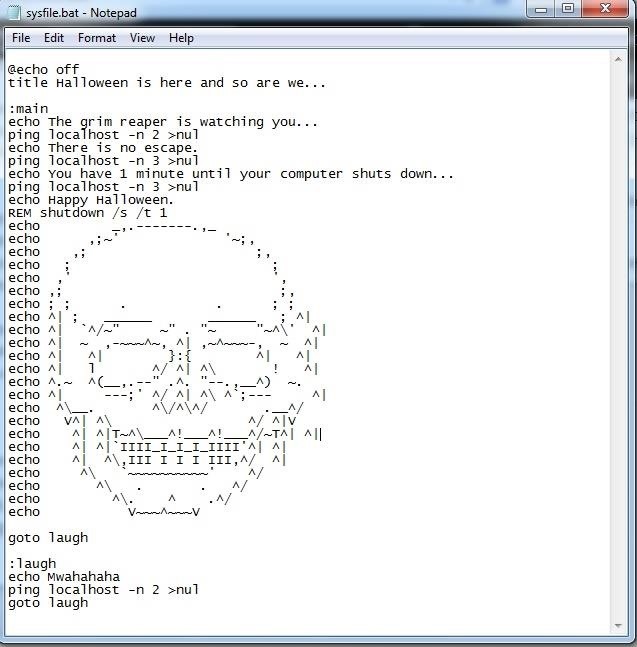
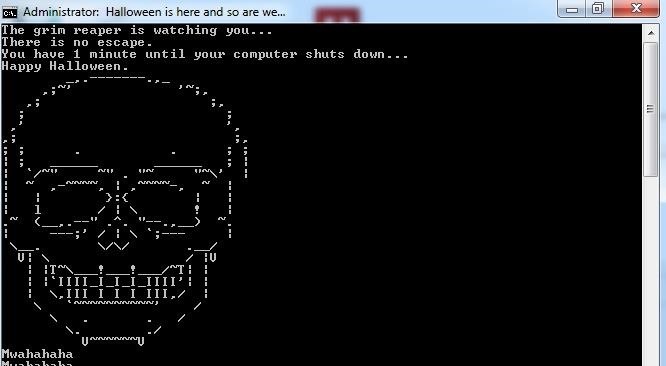
Step 1: Making the Batch FileFor those of you that don't know, a batch file is, on the most basic level, a standard-formatted document that runs a bunch of command line commands after each other or in a sequence that is defined by the programmer's implemented logic. They're really easy to make and require no special software to run.The reason we have chosen this is because it looks menacing to those who are not totally computer confident, and we can run some commands from it that will emphasize the effect that our little prank has.So, the first thing you want to do is open up Notepad, our editor of choice. Below I have prepared a small script for people not familiar with the command line, but it's super easy to create your own if you want a more customized scare.NOTE: I had to put the file as an attachment since the WHT posting system messed with the ASCII art. I put it as a text file, which you can download right here, so make sure you re-save it as a .bat file. Okay, admittedly the shutdown may be a little far-fetched, but it all adds to the illusion. All you have to do from now is paste that in a text document, hit Save As, change the type to all files, then save it as something like sysfile.bat (adds authenticity) to the target machine.I'd just like to emphasize that all of these steps should be done on the target machine, otherwise you'll find that you're pranking yourself.

Step 2: Making It Pop Up on the Day of HalloweenIn the second part of this how-to, we put our little script into action. But not in any old way, oh no, this will appear on the day of Halloween. The first thing we're going to want to do here is navigate to our Start menu and find the Task Scheduler, it should look something like this when you open it: We're interested in the little button that says "Create Basic Task..." on the Action Bar to the right of the window. It is from here where we will schedule our script to run. This can be done in 7 super simple steps:Select "Create Basic Task...." Choose a name and a description for your task. Since we only want this to run once, select "One Time." Punch in the date (the 31st, obviously) and also the time. Make sure you choose a time at which you know your victim will be at their computer. Select "Start a Program." Browse for and select our .bat file that we created earlier. Click "Next" and then "Finish."

Step 3: Reap (Sorry, Couldn't Resist) The RewardsSo you've got everything set up on your victim's computer. Now all you have to do is make sure you're there to watch when the thing goes off. Thanks for reading, and Happy Halloween!PS: For added panic (and a crashed computer), you could always add the line 'start' to the end of the attached file, which will open a new command prompt every half a second or so.


Invia solo storie private su Instagram a "Chiudi amici" Rimuovi le applicazioni di Facebook; I 5 migliori client Twitter gratuiti per Android; Creep Out Your Workmates su Halloween: Windows Edition


Over the last few months I have been getting more and more into computers over the last few months, and I discovered my new favorite thing to do.. notepad stuff! I will teach you how to do a few basic things in notepad, notepad++, and how to use them to your advantage!
Halloween: How to Creep Out Your House - lamag.com


Find out why Close. Halloween Creep Tales 2.0 (2015 - Special Edition) (HQ) MrSheltonTV Media - Original Sign in to make your opinion count. Sign in. 9 0. Don't like this video?
13 Halloween Window Decorations That Will Creep Out All Your


How To: Creep Out Your Workmates on Halloween: Windows Edition By The Rocket Box; Windows Tips; Want to get even this Halloween? Want to scare somebody with nothing but a few lines of code? Here's how it can be done
13 Halloween Window Decorations That Will Creep Out All Your
thewindowsourcedesmoines.com/2018/10/15/13-halloween-window-decorations-will-creep-neighbors/
13 Halloween Window Decorations That Will Creep Out All Your Neighbors One of the spookiest, creepiest ways to get your home in the Halloween spirit is to take full advantage of your windows — they're the perfect space for cool decals, because when the light from inside shines out, it leaves an eerie, shadowy glow.
Halloween Creep Tales 2.0 (2015 - Special Edition) (HQ


Print Edition; Digital Edition 13 Halloween Window Decorations That Will Creep Out All Your Neighbors there's a whole host of other decorations you can add to your windows — Halloween
How to Do Fun Things in Notepad, Notepad++, and .Bat Files


Halloween: How to Creep Out Your House. Production designer Corey Kaplan (the X-Files, Cold Case) shares her secrets Every autumn this Pasadena institution becomes a Halloween superstore where
Ottieni il nuovo widget meteo del Galaxy S8 sui vecchi

How to Creep Out Your Workmates on Halloween: Windows Edition


Want to get even this Halloween? Want to scare somebody with nothing but a few lines of code? Here's how it can be done So, with arguably the best holiday quickly approaching us, I thought I'd do a fun post on a cool way to prank your friends, enemies, or maybe even the whole office (we'll get onto that in another tutorial).
Enfrente seus colegas de trabalho no Halloween: Windows


Este é para qualquer um que ama piadas práticas ou Halloween, que é todo mundo, certo? A premissa desse susto digital é muito simples e usa apenas dois recursos de uma máquina Windows: arquivos em lote e agendamento de tarefas. Muito do sucesso disso dependerá da sua criatividade e / ou da sua capacidade de desenhar imagens em ASCII.
The Rocket Box's Profile « Wonder How To


Wonder How To is your guide to free how to videos on the Web. Search, Browse and Discover the best how to videos across the web using the largest how to video index on the web. Watch the best online video instructions, tutorials, & How-Tos for free.
Everything Else « Windows Tips :: Gadget Hacks

How To: The Easiest Way to Unlock the Bootloader on Your HTC EVO 4G LTE or Other HTC Smartphone

How To: The Easiest Way to Unlock the Bootloader on Your HTC EVO 4G LTE or Other HTC Smartphone

Nearly two years ago, Peter Chou, CEO of HTC, confirmed that the company would no longer be locking bootloaders. Whether or not they've actually lived up to this claim is debatable. Any phone bought from a wireless carrier comes locked. Only the new HTC One Developer Edition ships with an unlocked bootloader, and it does not have any carrier add-on software installed.However, HTC does provide an official way that anybody can use to unlock their phone's bootloader. While this method does not unlock every partition (the same is true for the HTC One Developer Edition), it unlocks the partitions necessary to flash custom ROMs. This guide will show you how. I'll be unlocking the bootloader on my HTC EVO 4G LTE, but it can be used for most HTC smartphones. I'll also be using Windows to do this, but the process is pretty much the same for other operating systems.
RequirementsTo unlock your HTC EVO 4G LTE's bootloader, you'll need to install all of the following onto your computer:HTC Sync for Windows. Actually, you only need the driver that's included in the installation. Mac users can click here. The Mini-SDK from Android Forums. This is just the platform tools extracted from the original Android SDK. Extract the contents to a folder. I'll be using "C:\sdk-tools." Java. You probably already have this. You'll also need to:Back up any important data, because this will reset your phone to factory settings. If you have an NFC-equipped phone, reset Google Wallet from within the app to prevent risk of your phone's secure element bricking.

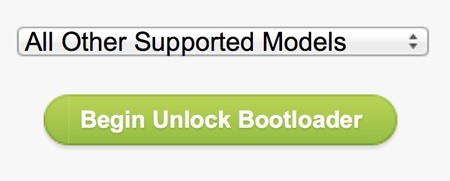
Unlocking Your BootloaderOnce you have and done all of the above, head over to HTCdev and register (you must register before continuing). Log in and go to Unlock Bootloader.Select "All Other Supported Models" from the drop-down list on the right and click the green "Begin Unlock Bootloader" button. You will have to confirm that you want to unlock your bootloader and acknowledge their legal terms to proceed. I'll go through the whole process below, but keep going on the HTCdev site because you'll have to submit some information near the end.Hold "Vol -" as you restart your device. Sometimes the phone will not detect the volume down key being held that way. If you run into this issue, power off the phone, then hold "Vol -" as you turn it on. Next, use the volume buttons to highlight "FASTBOOT," and press the Power button. Connect your phone to the computer via USB. Open a command prompt by clicking "Start" and entering "cmd." Navigate to the folder where you extracted the Mini-SDK: cd "sdk directory" Enter fastboot oem get_identifier_token and press "Enter." Now you'll have to copy the token. Right-click the command prompt window and select "Mark." You can then highlight the part you want to copy. Make sure you only select the token and not the text that appears on every line to the left of it. HTC's example says "{bootloader}" while mine says "INFO." To copy this text, right-click the title bar of the command prompt window, hover over "Edit," and click "Copy." Now, on the HTDdev site, paste the copied token into the field and click "Submit." Once you submit the token, you'll receive an email containing a .bin file. Download it, put it in your Mini-SDK directory, and enter the following command:fastboot flash unlocktoken Unlock_code.bin Accept the disclaimer and your phone will be unlocked! You can now flash a custom recovery and gain root access.


Never be left without light in an emergency with the Solar Powered Hand Crank Flashlight by Stalwart. Featuring a rechargeable solar panel and windup crank, this LED light stores energy and produces light without the use of battery or electricity.
Emergency Handcrank Flashlight You Can Make at Home!! - YouTube


Zombs Royale and chill stream! come and talk and request games if you like. This stream is also a mini test to see if my new pc can run games and stream well at the same time.
Four New Ways to Chill Computer Chips - IEEE Spectrum

How to Set a Ringtone for an Android Contact: 8 Steps


The Fix: What To Do When The App Store Is Not Working On Your iPhone, iPad, or iPod. I'll be using an iPhone for this walkthrough, but the process for fixing the App Store on iPad and iPod is exactly the same. If you have an iPad or iPod, feel free to substitute your device whenever you see iPhone in this article.
App Store Not Working on iPhone or iPad - Here's a Fix


Doodles are the fun, surprising, and sometimes spontaneous changes that are made to the Google logo to celebrate holidays, anniversaries, and the lives of famous artists, pioneers, and scientists.
Google Doodles


Report Ad
Did you check eBay? Fill Your Cart With Color today!


What is Whitepages reverse phone search? Whitepages offers the top free reverse phone number lookup tool online, established in 1997. With comprehensive contact information for over 275 million people and 25 million businesses as well as phone scam and fraud detection, we're not the old white pages phone book or directory.
Official Cell Phone Directory | Look Up By Name, Or Cell #
AD


As I've admitted before, I don't have a Sony Clie or any other Palm device in my offices, so I can't share hands-on tips, but fortunately, I do have access to the splendid book Palm & Treo Hacks, and one of the hacks in this popular O'Reilly Media book addresses this exact question, Hack #34: Connecting to the Internet.
How To Hard Reset A Palm Centro Smartphone - YouTube


Iceland, on the other hand, has a pretty poor catalogue in comparison. In fact just a couple of years back Iceland's Netflix catalogue contained just 15% of the American one. How to watch American Netflix in Iceland. To watch American Netflix in Iceland you'll need to get a VPN app.
How to watch Netflix from other regions | Streams Today Guide


How To: Hack Your Nexus 7 into a Hybrid Android Tablet That Looks & Feels Like Both iOS & TouchWiz How To: Easily Root Your Nexus 7 Tablet Running Android 4.3 Jelly Bean (Windows Guide) How To: Improve Battery Life on Your Nexus 7 Tablet with This Easy Power-Saving Tweak
How to Add On-Screen Buttons to Your TouchWiz ROM (Root Required)

Nova Launcher 101: How to Get Android Oreo's Adaptive Icons


How To: The Real Story Behind Rooting the Samsung Galaxy S4—And Its New Secured Kernel How To: Root and install a custom Hero ROM on a T-Mobile MyTouch 3G How To: Install a Custom Recovery & New ROM on Your Bootloader-Locked Samsung Galaxy S4
How to ROOT Samsung Galaxy S3 for AT&T, Sprint - Gadget Hacks

How to Wire an LED Police light bar system « Hacks, Mods

How To: Send & Receive Encrypted Android Texts Using Your Mac's Messages App

How To: Send & Receive Encrypted Android Texts Using Your Mac's Messages App
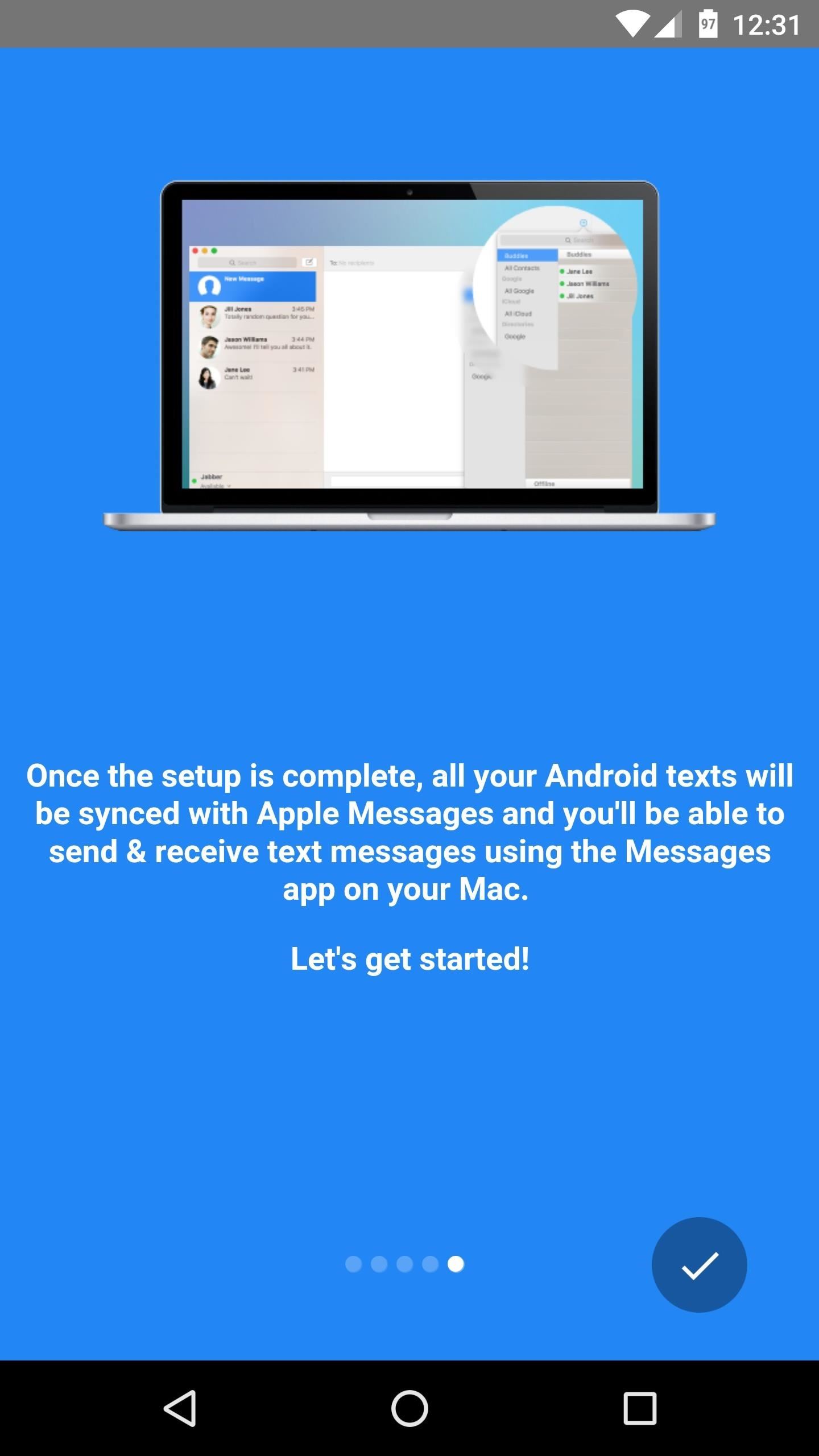
Prior to this year's WWDC, there were lots of rumors that Apple might finally be making a version of iMessage for Android. While that never came to fruition, a few big updates to a very useful app have now ensured that we can seamlessly send and receive Android texts in Apple Messages on our Macs.You see, the Apple Messages app for Macs allows iPhone users to continue SMS and MMS conversations from their computer, while still using their regular phone number. It's a similar setup to the way Windows users can use AirDroid or Pushbullet to pair with their Android devices, except it's a native experience that doesn't require any plug-ins or extensions.Gadget Hacks readers get 94% off one-year premium service.Well, thanks to an app called SMS for Apple Messages, we can finally get an iPhone-like messaging experience with a Mac and an Android device. The app even supports MMS and group messaging through Apple Messages on your Mac, and it provides end-to-end encryption.Even better, the developers have been kind enough to offer Gadget Hacks readers a promotional giveaway, so stay tuned until the end of the article for more information on that. (Update: promotion has ended.)

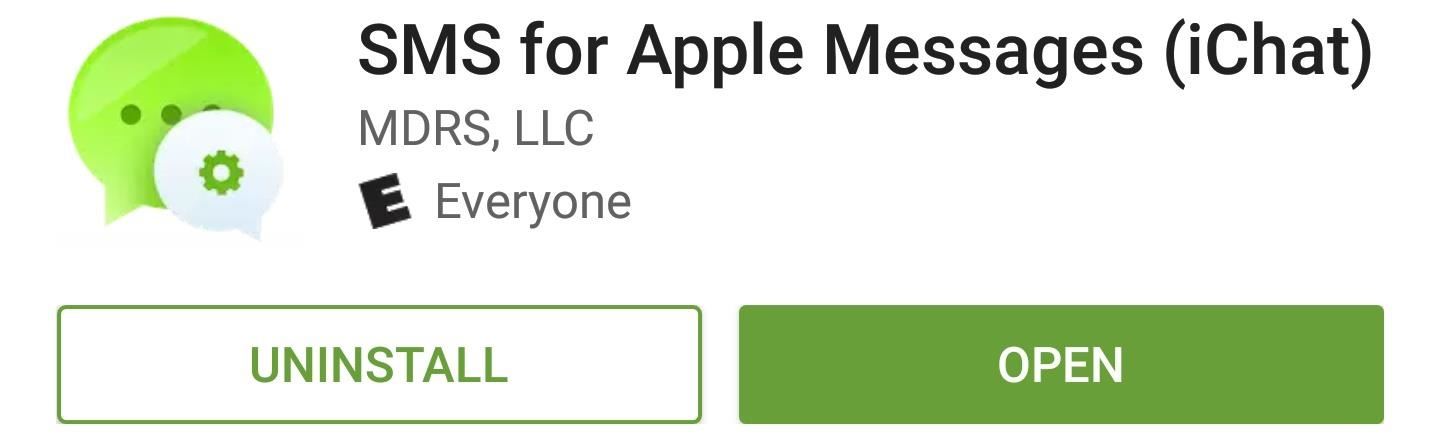
Step 1: Install SMS for Apple Messages (iChat)To start, the first thing you'll need to do is install SMS for Apple Messages (iChat) on your Android phone. (It was previously called SMS Integration for iChat.)Install SMS for Apple Messages for free from the Google Play Store

Step 2: Create an AccountWhen you first launch SMS for Apple Messages, you'll be greeted by a set-up guide. Go ahead and flip through this; towards the end, you'll be asked to create an account. This account is only for the app, so it's not your Apple ID or anything like that. So go ahead and set up a username and password, then press "Create Account." When you're done there, you'll see a second set-up guide. This one will walk you through the process of setting up the Mac side of things, so leave your phone on this screen, then switch over to your Mac to continue setup.

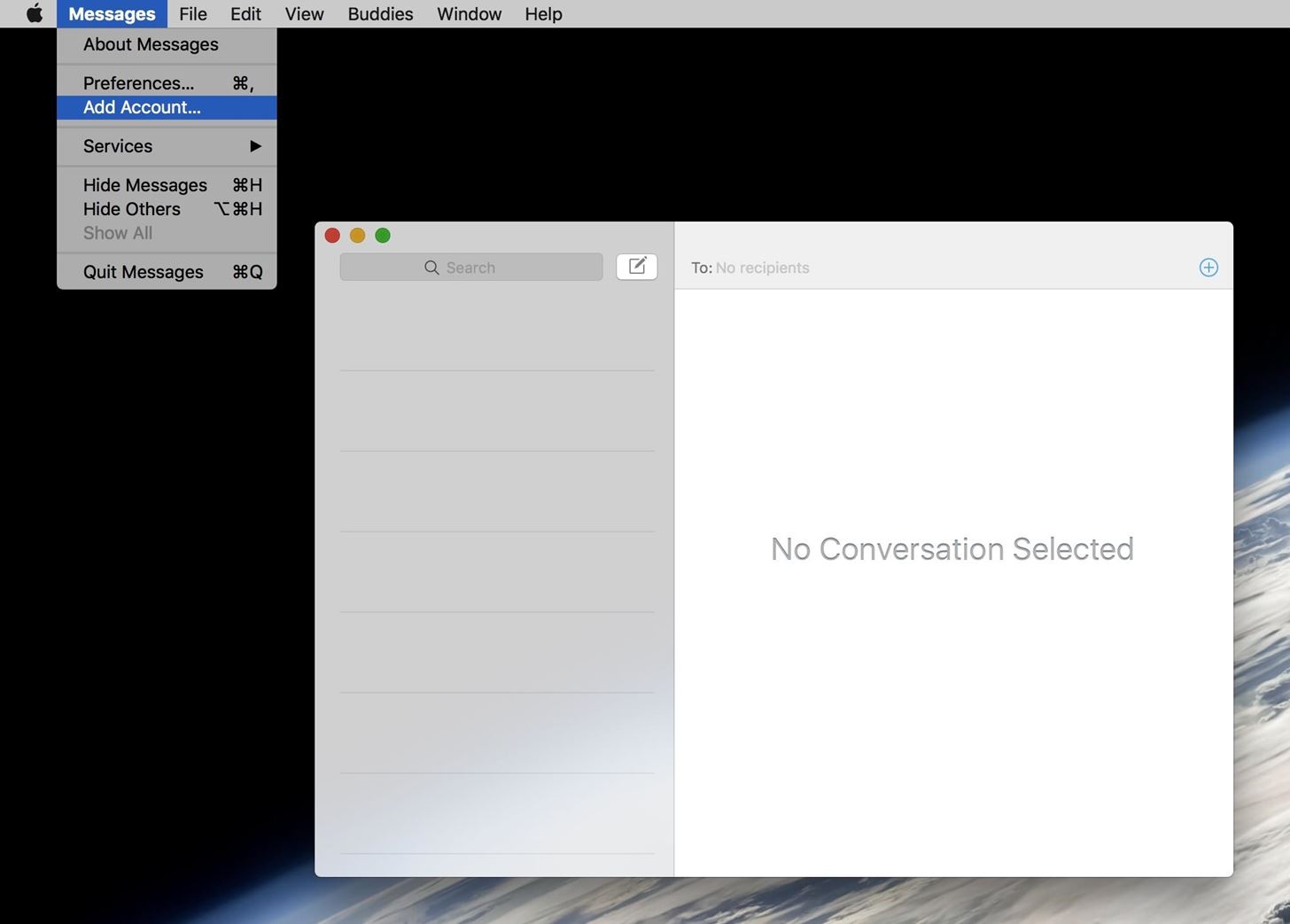
Step 3: Sign into the Account on Apple MessagesOn your Mac now, open the Messages app, then click the "Messages" menu at the top of your screen, and select "Add Account." Next, select "Other" on the first popup, then on the second popup, use the drop-down menu to choose the "Jabber" option. From here, leave all of the options selected exactly as they already are, then simply fill out the User Name and Password fields. The user name will be the same account name you created in Step 2, but with @ichat.mdrs.io added to the end (the full name will be shown in the Android app). So once you've entered the account credentials, click the "Sign In" button to move on. From here, the Messages app on your Mac will sync with your Android device, so give it a minute or two to download all of your existing SMS and MMS messages. In the meantime, if you're running Android 6.0 or higher, there's one more thing you'll need to take care of on the phone side of things.

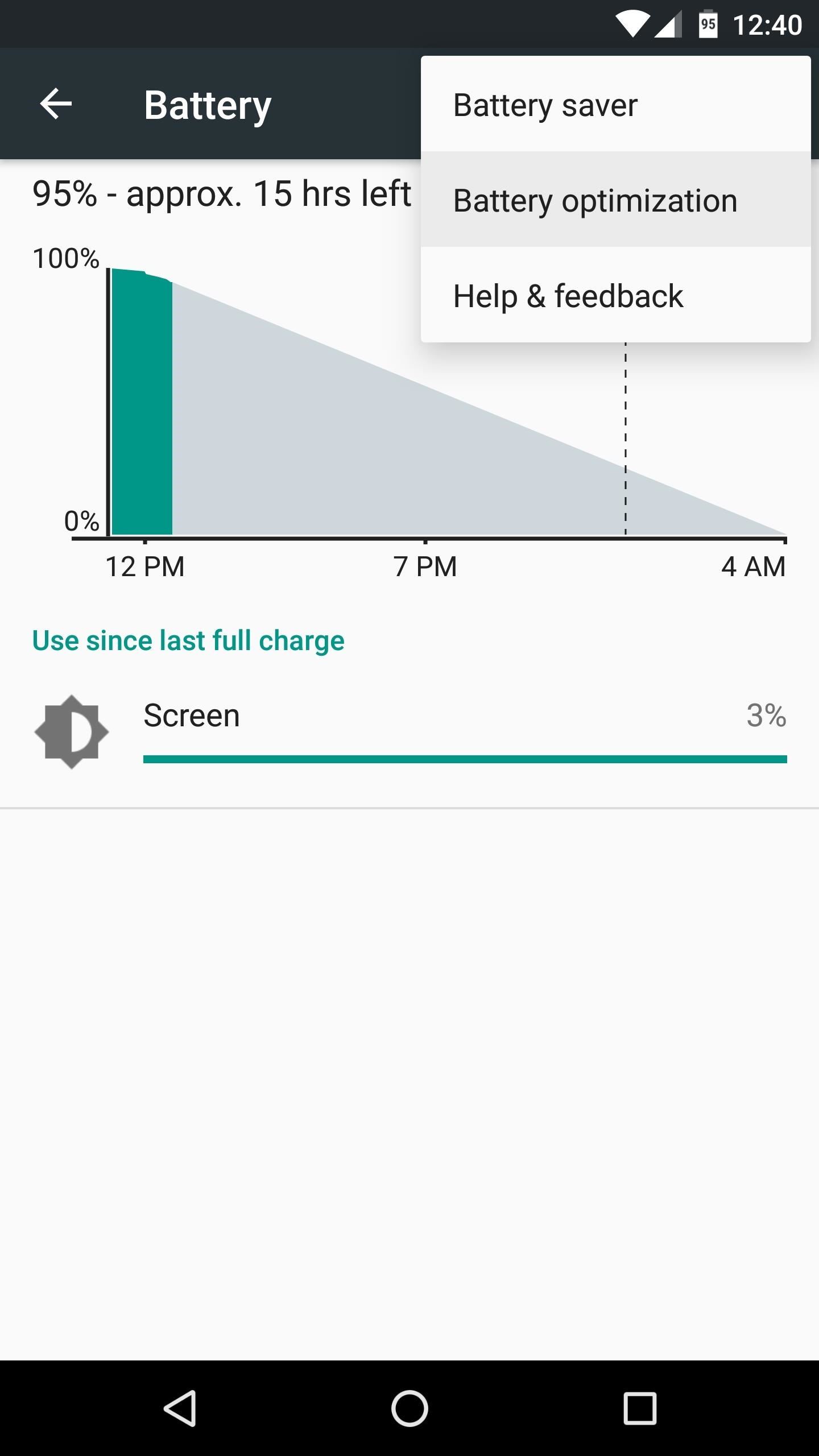
Step 4: (Android 6.0+) Disable Doze for the Android AppThis next step only applies if your Android device is running Marshmallow or higher. Because of the new Doze Mode feature, the Android system might sever the connection between your phone and your Mac when the device enters deep sleep mode, so you'll have to change one setting to prevent that.So from the Battery menu in Settings, tap the three-dot menu button at the top of the screen, then choose "Battery optimization." From here, tap the drop-down menu at the top of the list, then select "All apps." Next, scroll through the list and select the "SMS for iChat" entry. From here, choose "Don't optimize" on the popup, then press "Done." When you're finished here, you'll be done with setup.

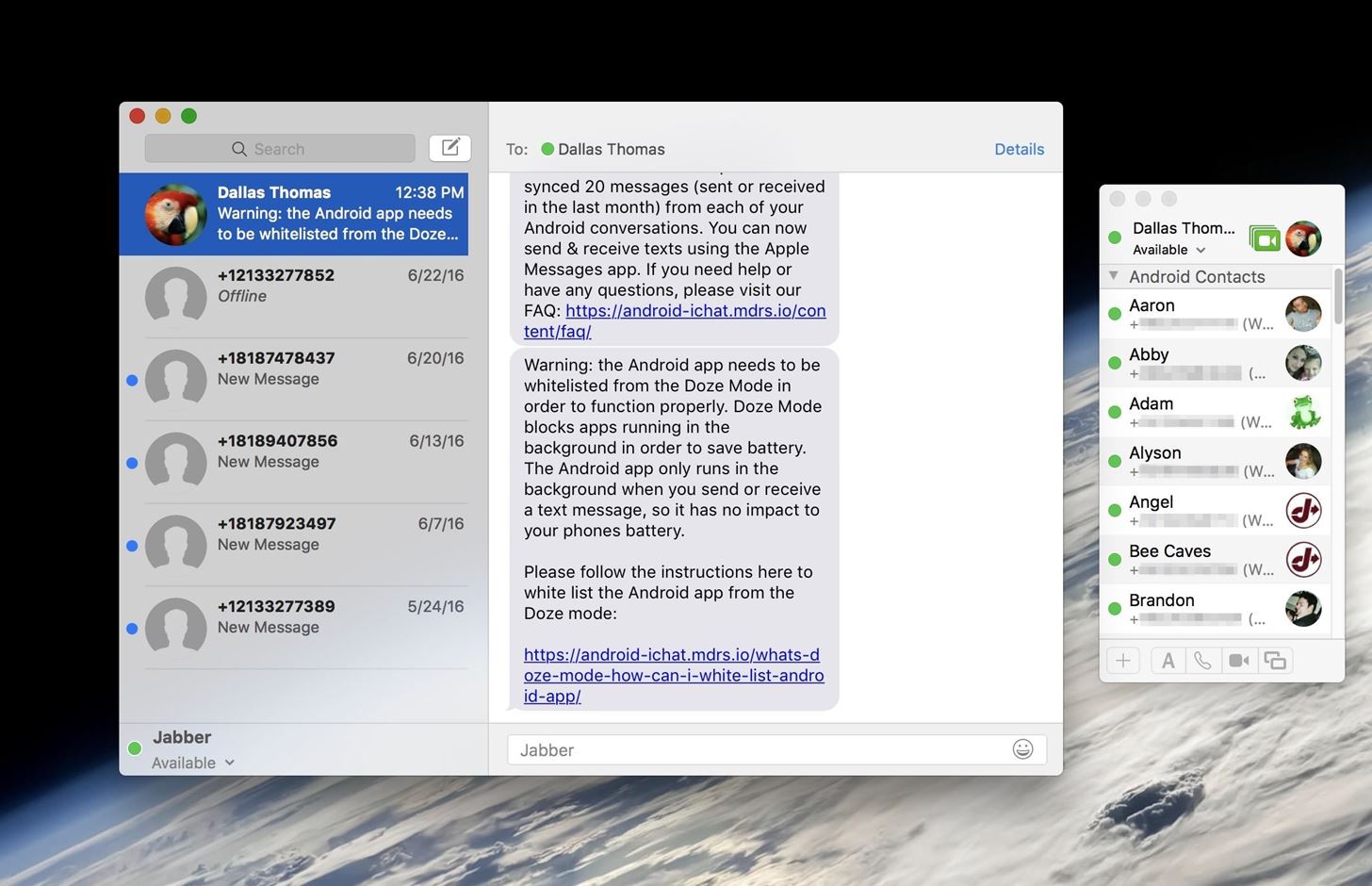
Step 5: Send & Receive Messages from Your MacAt this point, you'll see all of your existing Android text messages in the Apple Messages app on your Mac. You can select any message thread, then type away, and the messages will be sent using your carrier phone number. Any new messages you receive on Android will instantly be synced to your Mac, so they'll be visible here as well. Though we've covered this app in the past, it was definitely worth revisiting because of two big new features. First, the app now supports MMS, so you can send pictures and participate in group chats. Secondly, SMS for Apple Messages now supports end-to-end encryption, which means your messages are fully secure, and there is no more security warning in the Apple Messages app.

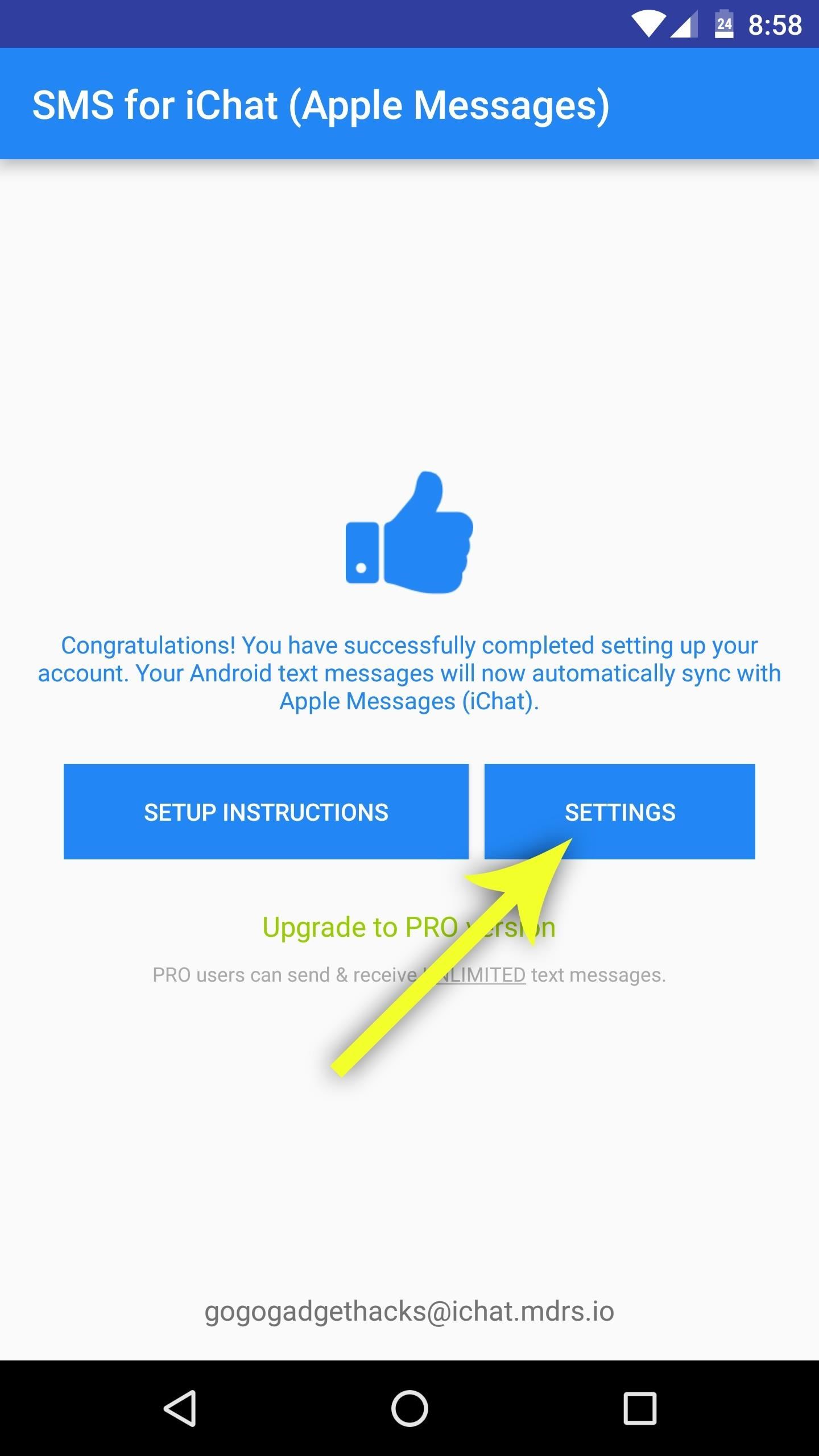
Promotional Offer Is OverUpdate: The promotion below is now over. Congrats to everyone who was able to take at advantage of it. If you missed out, stay tuned to more promotions on Gadget Hacks!As I mentioned at the beginning, the SMS for Apple Message developers are offering Gadget Hacks readers an exclusive promotional deal. Normally, the free version will allow you to send up to 5 messages per day, but if you want unlimited access, the service is a reasonable $4.99 per month or $29.99 per year. With this promotional giveaway, you'll only have to pay $1.99 for a full year of unlimited messaging.To take advantage of this offer, tap the "Settings" button on the main menu of the Android app. From here, select "Use Promo Code," then enter 779022 on the popup. Once you've done that, you'll be offered the promotional pricing, which is an absolute steal at only $1.99 for the entire year. Follow Gadget Hacks on Facebook, Twitter, Google+, and YouTube Follow Apple Hacks on Facebook and Twitter Follow Android Hacks on Facebook and Twitter Follow WonderHowTo on Facebook, Twitter, and Google+
Cover photo and screenshots by Dallas Thomas/Gadget Hacks


All about mobilephone guide, tips, repair guide iPhone 6s Maps. Get directions and navigation using the Maps app.
How to Use Turn by Turn Navigation on an iPhone or iPad - wikiHow


Here's a look at the best Windows 10 Mobile launchers for Android right now. SquareHome 2 lets you can resize your live tiles, and displays notifications and number count in your live tiles
Android for the Windows Guy: Customize Your Home Screen with


Apple's new iOS 13 software was unveiled at WWDC 2019 yesterday and now Apple has released iOS 13 beta 1 to developers. Apple has also released their first beat of iPadOS to developers as well
iOS 8.1.1 Beta 1 Released to Developers
osxdaily.com/2014/11/03/ios-8-1-1-beta-1-released-to-developers/
Apple has released the first beta of iOS 8.1.1 to those participating in the iOS Developer program. The update arrives as build 12B432 and is said to include multiple bug fixes, as well as performance improvements for the iPad 2 and iPhone 4S. Being a minor release, it is unlikely that iOS 8.1.1 will include any new features.


Getting from A to Z with your Windows Phone just got easier. Nokia today announced that its innovative collection of map and navigation apps—HERE Maps, HERE Drive Beta, and HERE Transit—are now available to all Windows Phone 8 users in Canada, France, Germany, Italy, Mexico, Spain, the U.K., and U.S. The apps were formerly available only to
google maps app for Windows phone? - Microsoft Community


Instagram is the world of beautiful photos and videos, and it is the responsibility of the social network to protect the uploaded media files by users. Instagram does not allow users to download video, photos and profile pictures in their mobile app, even we can not preview profile pictures on Instagram using our official app.
How to Upload Full-Size Photo/Video to Instagram without


Your Android device can begin booting then after the Android logo it goes into an endless boot loop- stuck in the Android screen. At this point you are unable to make anything work on the device. It is even more stressful when you don't know what to do to fix Android stuck on boot screen.
How To Change, Customize & Create Android Boot Animation [Guide]


26 Uber and Lyft Tricks to Save You Money on Your Next Ride which equal free rides for you! When using Uber, every time a new user signs up the same for Uber
Uber vs Lyft: A Side-By-Side Comparison | Ridester.com


The Edge browser in Windows 10 may not be as bad as the previous Internet Explorer avatars. Here are 4 great things you probably didn't know about.
Get to know Microsoft Edge - support.microsoft.com


F ew days ago YouTube became more 'bloated' with a new feature. The gray autoplay bar! Most of you guys must have noticed it, It is horrible and set Autoplay to "ON" by default; You have to turn it off everytime.
How to Use Mozilla Firefox Adblock to Block Annoying Ads on


Once you've removed the app or game, it should no longer post to your timeline. If you still see a past post, you can remove it . Note: The app or game may have stored info from when you were using it, but you can contact the developer to ask that they delete any info they may still have.
How can I remove unwanted apps from Windows 10? | Technology


You can set your Samsung Galaxy smartphone to send repeat notifications until you read your text or message. On later models, you can also set which apps and messages to set on repeat. 1 From the home screen, choose Apps or swipe up to access your apps.
Samsung Galaxy J3 V / J3 (2016) - Text Message Notification


If you've had your iPhone, iPad or iPod Touch for quite a while now, then you must have surely heard of or read on the web about "DFU mode". Of course, if you have no experience whatsoever
How To Put An iPhone In DFU Mode, The Apple Way


This is a guide to enable developer options on Android 4.4 and above, which is the OS of Samsung Galaxy S6 Edge/S6/S5/S4 Mini, Google Nexus 6,etc.
How to enable Developer Options on your Android device


If you've already jailbroken your iPhone, but noticed that you are missing your cellular data network tab, check out this video. You will need Cydia, Winterboard, and be jailbroken on 3.0 of course. Below is the source that needs to be added to Cydia:
how to fix missing cellular data network on any iphone 3,3gs


News: The Revolution of the Hacked Kinect, Part 2: Even MBAs Gotta Have One News: The Revolution of the Hacked Kinect, Part 4: The Future Is YOU News: Hacked Kinect Captures 3D Video in Real Time News: The Revolution of the Hacked Kinect, Part 1: Teaching Robots & the Blind to See
Kinect Real-Time Motion Capture with XNA | Kinect Hacks

How To: Get Live FM Radio on Your Galaxy S8 or S8+

How To: Get Live FM Radio on Your Galaxy S8 or S8+
The Galaxy S8 and S8+ come equipped with all of the hardware needed to access live FM radio, but this feature was never really advertised or even spoken about. Thankfully, though, all you need is an app to enable it.Samsung's using two different processors to power the S8 — the overseas variants use an Exynos chip, while the North American models use a Snapdragon SoC. Only the Snapdragon S8 variants are equipped with an FM receiver chip, which may explain why Samsung hasn't advertised the feature, but also means that US-based users can listen to live FM radio.The only trouble is, the Snapdragon variant doesn't come with instructions or a stock app allowing you to use the FM tuner. But to get it working, all you need is an FM radio app and a pair of headphones (the AKG-tuned Samsung earbuds that came with your phone will work just fine), so let's check out all the details below.Don't Miss: 10 Galaxy S8 Features You Need to Know About

Step 1: Download NextRadioTo start off, you'll want to download an app called NextRadio Free Live FM Radio onto your Snapdragon-powered Galaxy S8 or S8+. It's free to install, so go ahead and tap on the link below from your phone to open up the Play Store download page.Install NextRadio for free from the Google Play Store

Step 2: Set Up NextRadio & Connect Your HeadphonesNext, go ahead and open the app. NextRadio will ask for location permissions as well as your ZIP code, and once it has those, you'll get the opportunity to select your favorite local radio stations. From there, connect any pair of wired headphones (they'll be used as an antenna), and you'll be all set to listen to live FM radio. Yep, it's really that easy — which makes one wonder why Samsung didn't include a stock radio app like many other OEMs. Do you have any theories on why Samsung basically hid this feature away? If so, let us know in the comment section below.Don't Miss: The Safest Way to Disable All Bloatware on Your Galaxy S8 or S8+Follow Gadget Hacks on Facebook, Twitter, Google+, YouTube, and Instagram Follow WonderHowTo on Facebook, Twitter, Pinterest, and Google+
Cover image and screenshots by Kevin M./Gadget Hacks


Custom ROMs are one of the best things about Android! If you're ready to ditch your stock ROM and reap the many benefits of loading a custom ROM such as improved battery, better performance, and
How to Install ANY Custom ROM on your HTC One - YouTube


Sony had just announced that Xperia Z3 owners will be able to install and run the N preview build. This is the first time a major manufacturer has offered Android previews on their phones. The preview build is only available for Xperia Z3's international models (D6603 and D6653), so those of you with T-Mobile's US var
Sony Xperia XZ1 Boasts 3D Scanning Capabilities « Next Reality


News: Meet the Nokia 9 PureView — the Pixel 3 XL You Wanted News: Always-Updated List of Phones That Will Get Android Pie News: Google Unboxes ARCore for Samsung Galaxy Note 9, Tab S4, & Latest Devices from Sony & Nokia News: Google Expands ARCore to More Android Devices, Adds iOS Support
Nokia News, Reviews and Phones - PhoneArena


Galaxy S9's fingerprint sensor has moved beneath the rear camera, a more convenient spot that you can reach more easily and comfortably. Like your iris data, you can also use your fingerprint credentials to verify your identity on Samsung Pass, Secure Folder and Samsung Pay.
How to Replace the Cracked Screen on Your Samsung Galaxy S


Use Instagram Stories to share snippets from your day as a real estate agent. This can be a tool to let your personality really shine through, or give an up-close-and-personal look at your listings or community. Keep in mind these stories disappear after 24 hours! Instagram stories can be made up of different media.
Five Awesome Apps To Take Your Instagram Stories Game To The

Uber Price Estimate: Get an Accurate Price Estimate in Your


We will show you how to download watchOS 6 beta 1 for compatible Apple Watch models right now. You must be a registered developer for this. watchOS 6 is finally here and it is packed with a ton of
How to Install watchOS 5.3 Beta 1 on Apple Watch without


The camera situation on the all new HTC One is a little daunting. The M8 has not one, not two, but three camera lenses built in. First, there's the 5 megapixel selfie machine up front, then around back, there's the new Duo Camera with a refined UltraPixel sensor.
HTC explains how the 'Duo Camera' brings depth-sensing to the


Amazon Prime Day 2019 is still a few months off, but it's never too early to start preparing. We've been taking a look at the best discounts from previous Prime Days to give you our predictions of
Amazon Prime Day 2019 UK: the date, best deals, and how it


If you've ever seen a crazy photo on the internet and wondered whether it's even real, you might be excited to find that yes, there's an app analysis tool for that.. The FotoForensics website, developed by computer scientist Neal Krawetz, has been around since 2012 - which can make it feel a bit arcane by modern web design standards.
Spot faked photos using digital forensic techniques | Popular


How To: Never Forget Your Grocery List Again — Make Google Home Remind You When You're at the Store How To: Create Collaborative Reminders on Your iPhone or iPad How To: Create Google Now Reminders Straight from Google Search on Your Computer
Add reminders in Google Calendar - Computer - Calendar Help


Do you ever want to take a trip down memory lane and view the Instagram posts you've liked in the past? Did you know the Instagram application allows you to do just that? Our guide will show you
How to See Photos You've Liked on Instagram - OS X Daily
osxdaily.com/2017/04/08/see-photos-liked-instagram/
We're focusing on the Instagram app for iPhone here, but this likely works the same on Instagram for Android too, and if you have Instagram on your iPad it will be the same. How to See All Pictures You Have Liked on Instagram. This works to see all images and posts you have liked on Instagram
How to See Posts You've Liked on Instagram: 5 Steps


Add a New Super Administrator User. If changing the password won't work, or you aren't sure which user is a member of the Super Administrator group, you can use this method to create a new user. Navigate to phpMyAdmin and select the database for the Joomla! site in the left-hand drop-down list box.
J1.5:How do you recover or reset your admin password


Create a recovery drive and a system image which you can use to easily restore if Windows does not boot or becomes corrupt or hardware failure. Details. First step, launch Backup and Restore. Press Windows + X then click Control Panel. In Control Panel, click Backup and Restore (Windows 7) Under Control Panel Home, click Create a system image


Although Instagram doesn't make it obvious, you can insert line breaks. You just have to know how to do it. In this post, I will show you a very basic trick that will let you insert line breaks inside the Instagram app, for your photo captions and comments, as well as for your bio. How to add line breaks in an Instagram bio, comment, or caption
How to AUTOMATICALLY Add Line Break in Instagram Caption?

How To: Create App Folders on the Amazon Fire Phone

How To: Create App Folders on the Amazon Fire Phone

The first thing we usually do with a new smartphone is download apps, and lots of them. There are your must-have games, utility apps, and of course—the free daily "app of the day" from Amazon. If you're like me, you'll install every single one of these free apps, and whether they get used or not, they'll be waiting in the app drawer.After a while, that app drawer gets extremely cluttered, and for someone with faux-OCD, that can be pretty stressful. On my past Android devices, I'd simply create app folders on my home screen, but it's a bit different on the Amazon Fire Phone.With Carousel being the de-facto "home screen," that means we'd be left with either installing a third-party launcher and giving up the Carousel altogether. However, a recent update from Amazon now lets us create folders in the app drawer. Please enable JavaScript to watch this video.
Pick an app to start, then long-press and drag it on top of another app that you want in the same folder, called a "collection" here. You'll see a prompt allowing you to name the collection, and then you're all set. To add more apps, simply drag them to the folder. To remove an app from a collection, long-press it and select Remove from Collection, and it'll return to the app drawer as a standalone icon. Now you can better organize the apps in your app drawer, and keep app-clutter to a minimum. For more tips, make sure to check out our Fire Phone section here in the Amazon Fire world, and if you have any questions on anything Fire-related, make sure to hit up the forum for help.


In this tutorial, learn all about how to use Trook and get started with even more fun features on the Barnes and Noble Nook e-reader. By installing and using the Trook app on your Nook, you will have access to lots of fun options like RSS feeds, online libraries and the Lexcycle catalog to download directly to your Nook.
How to Root Your NOOK Tablet - Android Authority


Sometimes, copying files to and from an external drive may be your only option if you want to sync your home and office computers and your company's IT department doesn't allow installation of nonapproved software. In such circumstances, they also might not allow external devices to be plugged in, though, so check with them for your options.
How to Make Your iPhone Play Nice With Your Windows PC


Sony had just announced that Xperia Z3 owners will be able to install and run the N preview build. This is the first time a major manufacturer has offered Android previews on their phones. The preview build is only available for Xperia Z3's international models (D6603 and D6653), so those of you with T-Mobile's US var
Sony Xperia XZ1 Boasts 3D Scanning Capabilities « Next Reality


Use Tasker to block heads up notifications while gaming or watching videos on Android so you won't get interrupted with notifications ever again!
How to Block Notifications from Any App in Android

How to Banish Multi-Page Articles & Slideshows Forever

Instantly Unlock Your iPhone with Face ID — No Swipe Needed


To help save battery power, you can choose a lower screen timeout setting on your Samsung Galaxy S4. How to turn off the screen lock on my Samsung Galaxy S III;
Turn On Your Android's Flashlight Using the Power Button


The stock AccuWeather widget on the Samsung Galaxy Note 3 is great if you want a super quick way to see the current time, date, and weather forecast for your area, but personally, its design just doesn't do it for me.
How to Set a GIF as a Live Wallpaper for Your iPhone's Lock


Google Security Engineer Explains Issues With Root and Android Pay in the XDA Forums. A forum member that has been confirmed as working as a Security Engineer for Google out of Mountain View, has


Smart Drawer - Apps Organizer Is ginlemon,smartdrawer,personalization,smart,drawer application.Get Free Smart Drawer - Apps Organizer APK Free Download Version 1.0.1 (ginlemon.smartdrawer). App developed by Smart Launcher Team File size 3.86 MB.
JINA App Drawer, Sidebar & Folder Organizer | APK Download

Install SNES emulator on your iPhone or iPad without jailbreaking


News: iOS 11.3 Bug Removes Screenshot Previews for Some iPhone Users How To: The 9 Most Annoying Changes in iOS 11 & How to Fix Them How To: Disable Notification Previews for All Apps in iOS 11 How To: 18 Tips for iOS 11's New Screenshot Tool on Your iPhone
18 Tips for iOS 11's New Screenshot Tool on Your iPhone


LG Cosmos™ / LG Cosmos™ 2 / LG Cosmos™ 3 - Create and Send a Text Message From the main screen, select MENU . Utilize the 5-way navigation pad to highlight and the OK button to select.
How do I copy text messages from LG Cosmos 2 to PC. I seem to


Now you can own your very own diesel powered MechWarrior that stands 13 feet tall and weighs tons. Known as the Kuratas, this giant MechWarrior actually has a cockpit for you to r
Online Shopping: Shop the Official HSN Site | HSN

Apple Releases 'Second' iOS 12.4 Public Beta for iPhone to